01 / 04
1. Write the question and scope
Start with one operational question, such as whether the test campaign has an available agent while a test call is waiting. A report can show only the campaigns, users and calls available to the account and filters in use.
Record the report name, selected campaign or ALL scope, user group, time zone and the time displayed or observed. Ask the administrator which clock the installation uses if it is unclear. A blank filter and an explicit ALL value need not mean the same thing on every report.
- Open Reports and select the real-time report available to your account. If it is missing, ask the administrator to confirm report permission and the installed version.
- Select the approved test campaign and record every active filter. Download the worksheet and enter the question, scope and observation time.
- Find RELOAD NOW and the refresh countdown if present. Refresh once if appropriate and record the displayed report time; if no report time is visible, record the observation time and its source instead.
You should seeAnother reviewer can reproduce the same scope and tell when the observation was made.
02 / 04
2. Read the live picture in context
Inspect waiting calls and the agent list together. Note the campaign, agent, displayed state and elapsed value for one synthetic example. A state or timer on a screen does not by itself explain why an agent is unavailable, whether work was assigned fairly, or the outcome of a call.
The 2011 VICIdial presentation shows READY and INCALL examples and separate waiting-call and agent sections. Your installation may use different labels or permissions. Use local definitions for each state and avoid treating an unfamiliar label as a fault.
- At the recorded timestamp, write down the count and age of waiting test calls and the displayed state of the approved test agent.
- Compare the campaign on both rows. If they do not belong to the same scope, correct the filter or record the difference before comparing them.
- If a state persists unexpectedly, refresh and record a second timestamp and observation. Ask the supervisor or agent for context through the normal channel; do not infer a cause from the timer alone.
Native Real-Time report snapshot with seven dialable leads, one hopper lead and no active calls or agents
Open to enlarge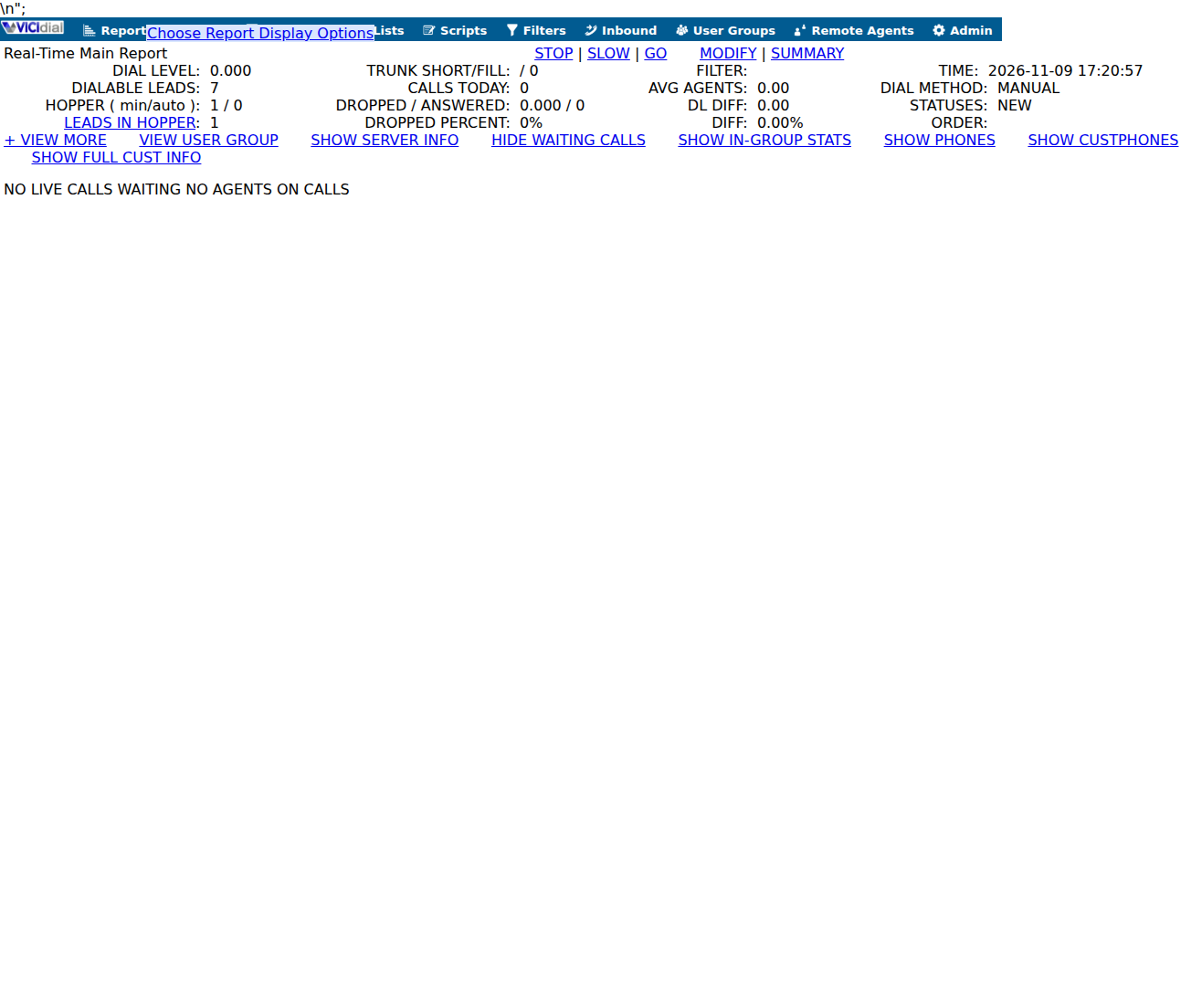
Capture details
The snapshot shows no calls waiting or agents on calls. It does not demonstrate state transitions or completed calls.You should seeThe worksheet contains two observations with timestamps, or an explicit reason why only one was available.
03 / 04
3. Choose and record a follow-up
A waiting call and no available agent can justify checking staffing, routing or the campaign with its owner. The report is evidence for a question, not proof that a setting should be changed. Monitoring and intervention controls may require separate permission and local policy.
- Write the observation separately from the proposed explanation: for example, “one test call shown waiting at 14:00; cause not yet established.”
- Assign an owner and a time to check back. If the displayed data are stale, the expected campaign is absent, or the clock is uncertain, resolve that scope issue before escalation.
- Use the approved handoff channel and include only permitted identifiers. Keep any customer number or recording out of the shared worksheet.
You should seeThe handoff names an owner and next check without turning an unverified state into a performance conclusion.
04 / 04
4. Reconcile one known event with history
A live screen is a snapshot, while User Stats covers a selected period and user. The counts need not match. Compare one known event first, then compare aggregates only after their population, date boundaries, time zone, status and units match.
For a fictional exercise, expect a test interaction at 14:00 for TEST01, with the date and time zone confirmed by the administrator. This is an expected event, not a claim that a call occurred.
- Open Reports → User Stats and select the approved agent and date. Leave Call status empty when all statuses are intended; ALL is an exact status code in the documented User Stats form, not a wildcard.
- Find the authorized test call by time, campaign, list, lead and status. Record the report run time and its filters alongside the snapshot.
- If the event is absent, check user, period boundaries, time zone, status filter and permissions. If it still does not match, preserve the observation and ask the report owner to inspect the installed report definition.
You should seeA matched row supports that one event was included; it does not validate every report total or metric formula.
Checks and sources
What was checked
- The cited presentation shows a historical 2011 real-time screen. Read-only inspection of the installed realtime_report.php and AST_timeonVDADall.php on November 9, 2026 found RELOAD NOW, a refresh countdown and agent and call displays; this is source evidence, not a controlled live-state test.
Primary references
Sources
- VICIdial real-time report exampleVICIdial Group · accessed November 9, 2026
- VICIdial product featuresVICIdial Group · accessed November 9, 2026