Reader setup
Before you start
Run each step in order and move only when the outcome is confirmed.
- Terminal basics
- A disposable VM
- Know whether it is Debian/Ubuntu or openSUSE
- What you will prove
- You can detect which package manager a host actually has, then inspect package information on that tool without starting a system-wide upgrade.
- Safety boundary
- Do not mix repositories or run a distribution upgrade on a VICIdial/ViciBox host as a learning exercise.
Reader path
How to use this article
- Use it when: You need a fixed sequence to make a deployment or configuration change now.
- Expected result: Follow each step and verify the outcome before changing the next layer.
- Start here: Start at the first section and complete every checkpoint before moving to the next.
01 / 05
A package manager tracks software
A package bundles software together with metadata and a list of dependencies, so installing one thing correctly pulls in everything it needs. A repository is a configured, trusted source of packages. Let the package manager resolve dependencies for you instead of downloading an RPM or DEB file from a search result and installing it by hand — that shortcut is exactly how conflicting library versions and half-broken systems get created.
Two package managers matter for this curriculum: apt, used by Debian and Ubuntu, and zypper, used by openSUSE — the family ViciBox is built on. openSUSE also offers a graphical front end called YaST, which calls the same underlying tools. Stock ViciBox is its own maintained appliance, not a generic openSUSE install, so a package change that is safe on a plain openSUSE lab is not automatically a supported ViciBox modification; treat the two as related but separate skills.
Visual walkthrough
Follow three real demo screens
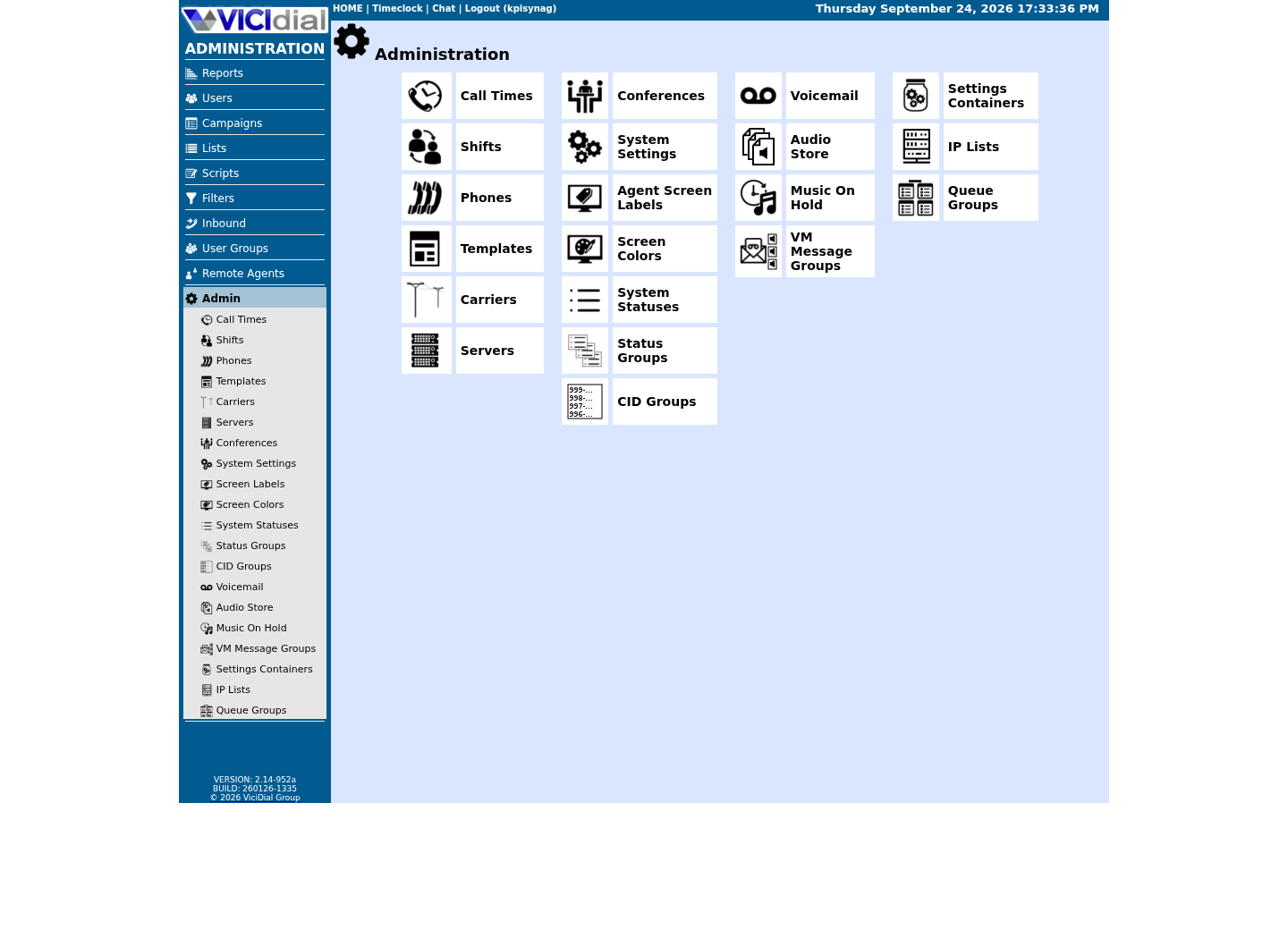
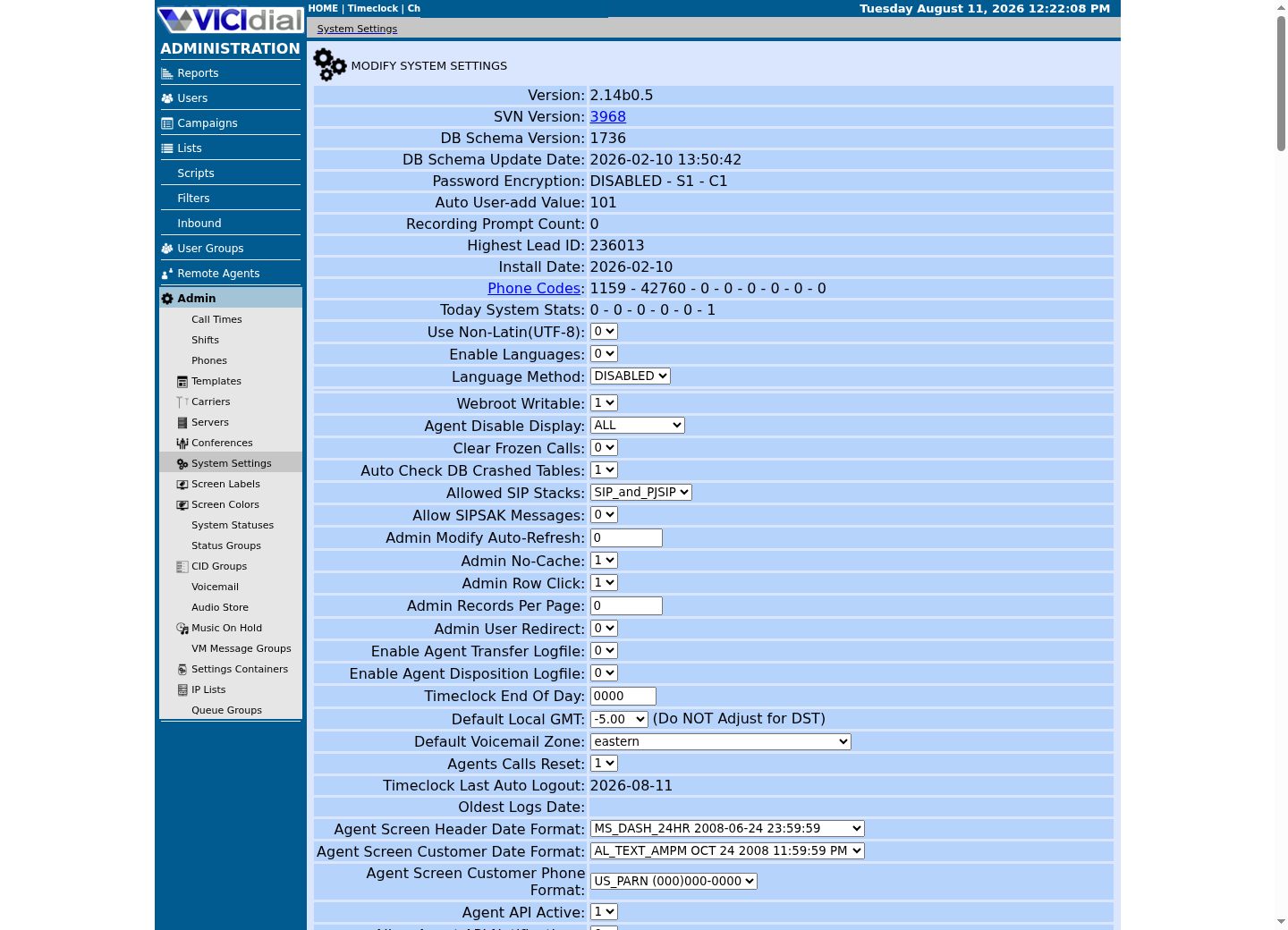
Captured on an isolated VICIdial demo: Administration screens on September 24, 2026, and the idle Agent screen on August 11, 2026. Each caption states its own capture time, and every sanitized image helps you recognize a related screen; none proves that this article's call, command, or result occurred.Start at Administration home
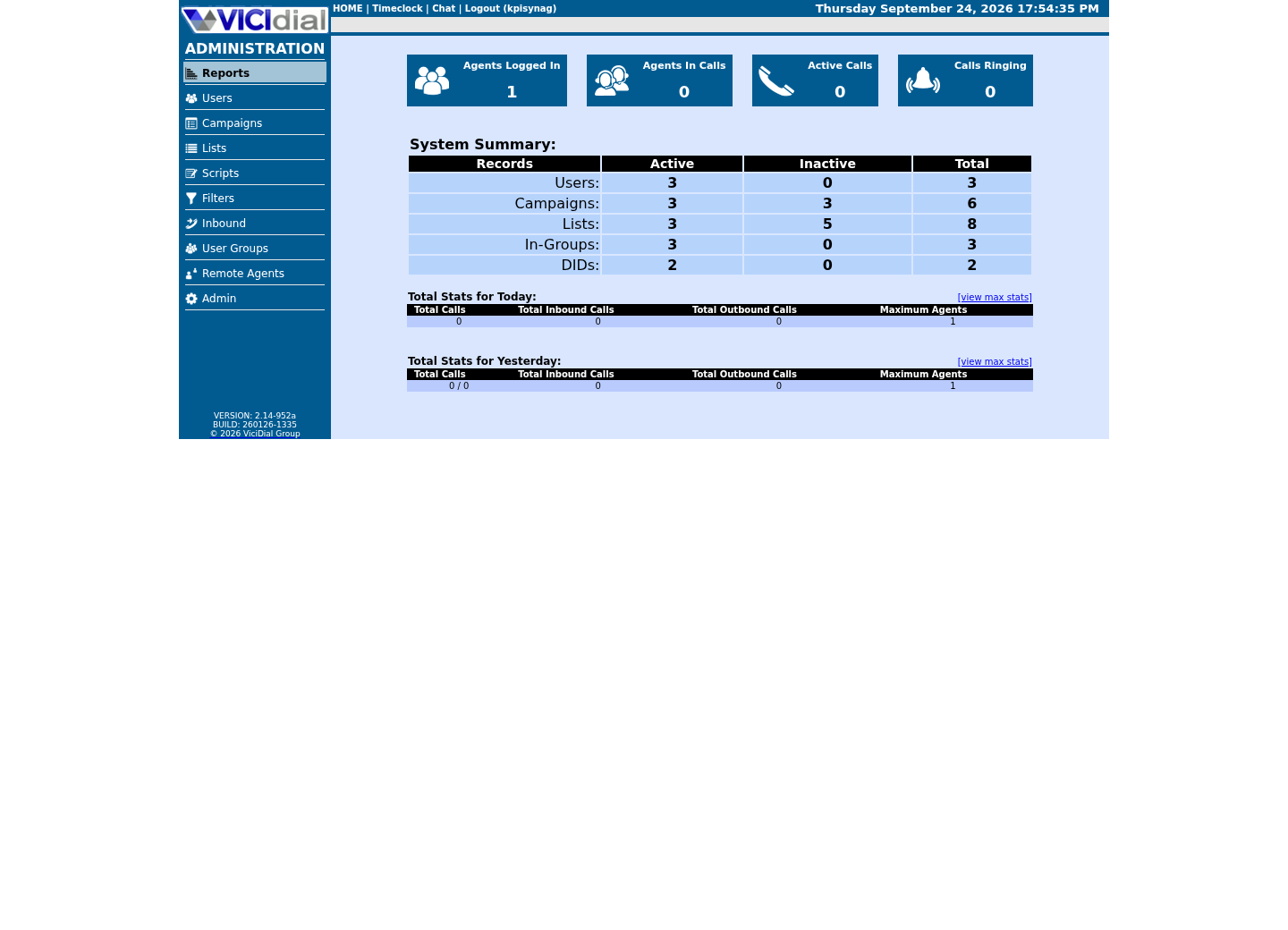
Use the Administration menu as a map
Confirm version and system-wide context
02 / 05
Detect before you assume
Never guess which package manager a host runs from its hostname, its purpose, or a habit from your last job. `/etc/os-release` names the distribution in a few standard, machine-readable lines, and `command -v` reports whether a given program exists on the current PATH (the list of directories your shell searches, in order, whenever you type a program's name without a full path to it) without running it — both are read-only checks you can run on any unfamiliar host in seconds, before you type a single package command.
Recording the release name and version is the first fact worth writing in any change ticket, because it determines which manual you should be reading and which package names are even valid; a package called openssh on one distribution can be called openssh-server or openssh-clients on another, and guessing wrong wastes time on both sides of a support conversation.
This matters more, not less, once VICIdial is involved. A forum post or an old blog written for a Debian-based install can name packages, paths and commands that simply do not exist under those names on the openSUSE-based ViciBox this curriculum's lab stage uses, and running its apt commands there will only teach you that apt itself is missing.
03 / 05
Guided sample: identify the platform
This sample answers two questions at once: what distribution is this, and which package manager does it actually have installed? `command -v apt` and `command -v zypper` each print a path if the tool exists, and print nothing and exit with a non-zero status if it does not — on almost every real host, exactly one of the two will report a path.
Running both lookups instead of assuming from the first one costs nothing and catches the rare host that genuinely has neither, or that has both because someone installed compatibility tooling — a case worth a question to the host's owner rather than a guess about which one actually manages the system's real packages.
cat /etc/os-releasecommand -v aptcommand -v zypperCaptured demo response · 2026-09-23 21:34 UTC. The displayed command is the command that ran; a safe subset label means it was filtered, redacted, or fixture-scoped. Replays only after you select Replay transcript.
- Before you run it
- All three commands only read; nothing here changes the system.
- Success looks like
- You see distribution details from /etc/os-release, and a path from whichever of apt or zypper is actually installed.
- Stop if
- Stop if the host reports a distribution you do not recognize, or if neither command -v line prints anything — ask the host's owner before choosing a package manager to use next.
04 / 05
Guided sample: branch on what you detected, then inspect only
Now use what the previous sample told you, rather than running a command that only works on one family and prints a confusing "not found" error on the other. The script below checks for zypper first, since ViciBox and every other openSUSE-family host in this curriculum reports it, and falls back to apt-cache only if zypper is absent. Either branch only inspects; neither installs, removes nor upgrades anything.
`zypper info` and `apt-cache policy` both report a package's available and installed versions without asking for confirmation. If either tool ever does prompt you to confirm a transaction, stop — that means you typed an installation command by mistake, not an inspection one.
if command -v zypper >/dev/null 2>&1; then zypper --no-refresh info opensshelif command -v apt-cache >/dev/null 2>&1; then apt-cache policy openssh-serverfiCaptured demo response · 2026-09-24 21:56 UTC. The displayed command is the command that ran; a safe subset label means it was filtered, redacted, or fixture-scoped. Replays only after you select Replay transcript.
- Before you run it
- This runs exactly one branch, matching the tool the previous sample found; it only inspects.
- Success looks like
- You see one package's version and repository metadata, from whichever branch matched your host.
- Stop if
- Stop if the tool proposes a transaction or asks for confirmation; an inspection command should never do that.
05 / 05
Update plans need a change window
Everything above is inspection. Actually installing or upgrading a package is a different act entirely, and on a host running Asterisk, a database or a web server, it deserves a compatibility check, a rollback plan and a maintenance window — not a habit carried over from a personal laptop where an unplanned reboot costs nothing.
Treat any upgrade on a ViciBox host as a planned change. The ViciBox kernel-upgrade guide in this library's reference docs (written for the ViciBox 7 era) walks through repository checks, free space in /boot and a reboot — exactly the preparation an ad hoc `zypper update` skips. That belongs in a change window, never on a host others depend on.
- I can name my host's distribution and its package manager without guessing.
- I ran only the branch that matched what I detected.
- I know that any prompt asking me to confirm a transaction means I have left inspection and entered installation.
Evidence ledger
Verification basis
- Both samples in this lesson only read package metadata: `cat`, `command -v`, `zypper info` and `apt-cache policy` never install, remove or upgrade a package.
Primary references
Sources
- APT user guideDebian Project · accessed September 23, 2026
- Managing software with command line toolsopenSUSE · accessed September 23, 2026