Reader setup
Before you start
Run each step in order and move only when the outcome is confirmed.
- A running VICIdial installation with Admin access, from the first article in this path
- Read-only database access from Create a read-only database account for safe VICIdial queries, used for the verification step below
- About 20 to 30 minutes, plus permission to place one test call once everything is wired up
- What you will prove
- One user group, one agent login, one phone (station) record, one empty list, and one campaign, connected in the order that actually works, with Dial Method MANUAL and Active set to Y only once every field is confirmed correct.
- Safety boundary
- Keep the campaign's dial method MANUAL — that is what keeps you safe, not leaving it inactive — and set Active to Y only once every field below is correct. Create every record through the Admin web interface, never with direct SQL, because hand-inserting rows skips the Asterisk configuration those screens generate for you.
Reader path
How to use this article
- Use it when: You need a fixed sequence to make a deployment or configuration change now.
- Expected result: Follow each step and verify the outcome before changing the next layer.
- Start here: Start at the first section and complete every checkpoint before moving to the next.
01 / 09
The five records a first campaign needs, and the order that works
Fast answer: build five records through the Admin web interface, in this order: a user group, the agent's user login, a phone (station) record, a list, and the campaign that switches everything on. Do every step in Admin, never with direct SQL, because the Admin screens are what regenerate the Asterisk telephony configuration each of these records depends on.
Campaign, list and lead are defined in the beginner terminology guide.
This guide assumes you have already signed in to Admin for the first time. A SIP carrier is optional at this stage: connecting one lets a finished campaign dial real outside numbers, but every record you build here, and the first test call two articles from now, works against an internal test destination instead.
The five records below, and their dependency order, are the real Admin-interface path: a user group, then a user, then a phone, then a list, then the campaign that switches everything on. Nothing here is raw SQL; every step happens through Admin, because a phone record inserted directly into the database has no matching entry in Asterisk, so the agent's login has nothing to register against.
1. User group -> no dependencies2. Agent's user login -> needs the user group3. Phone (station) -> needs the user group; its own Agent Screen Login/Password are what the agent types4. List -> needs a campaign to attach to (create a bare, inactive campaign first if none exists)5. Campaign, finished -> dial method, dial prefix, allowed list and active status: the step that actually switches it onThis sample is a template or reading aid, not a terminal command. There is no output to show.
- Before you run it
- Read this as your map before opening any Admin screen. Each line names what has to exist before the next record's form will make sense.
- Success looks like
- You can point to exactly which of the five records you are about to create, and what it depends on, before you open Admin.
- Stop if
- If you are tempted to create these out of order, for example a phone before its user group, expect an empty or confusing dropdown on that screen; go back one line instead of forcing it.
Visual walkthrough
Follow three real demo screens
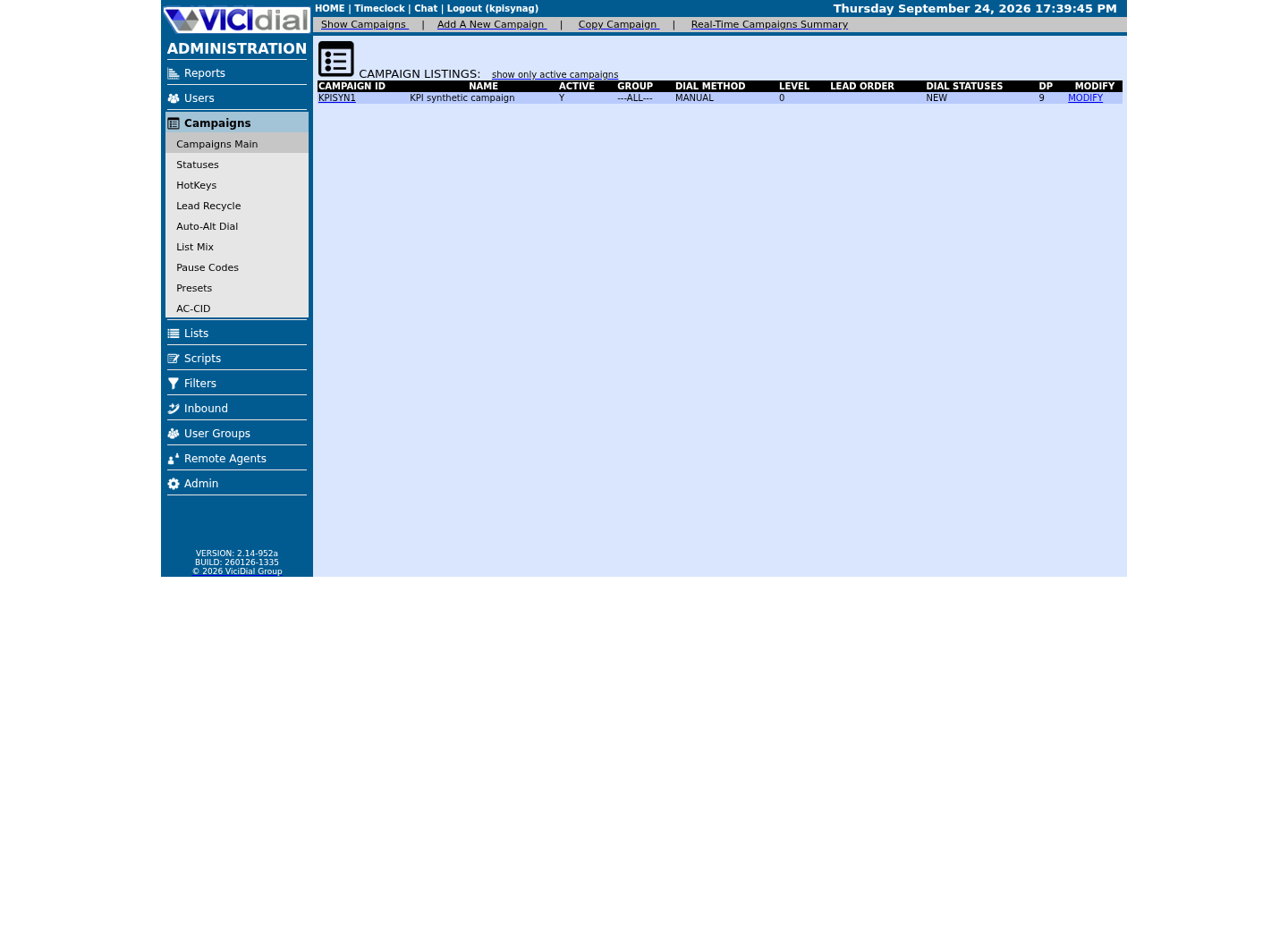
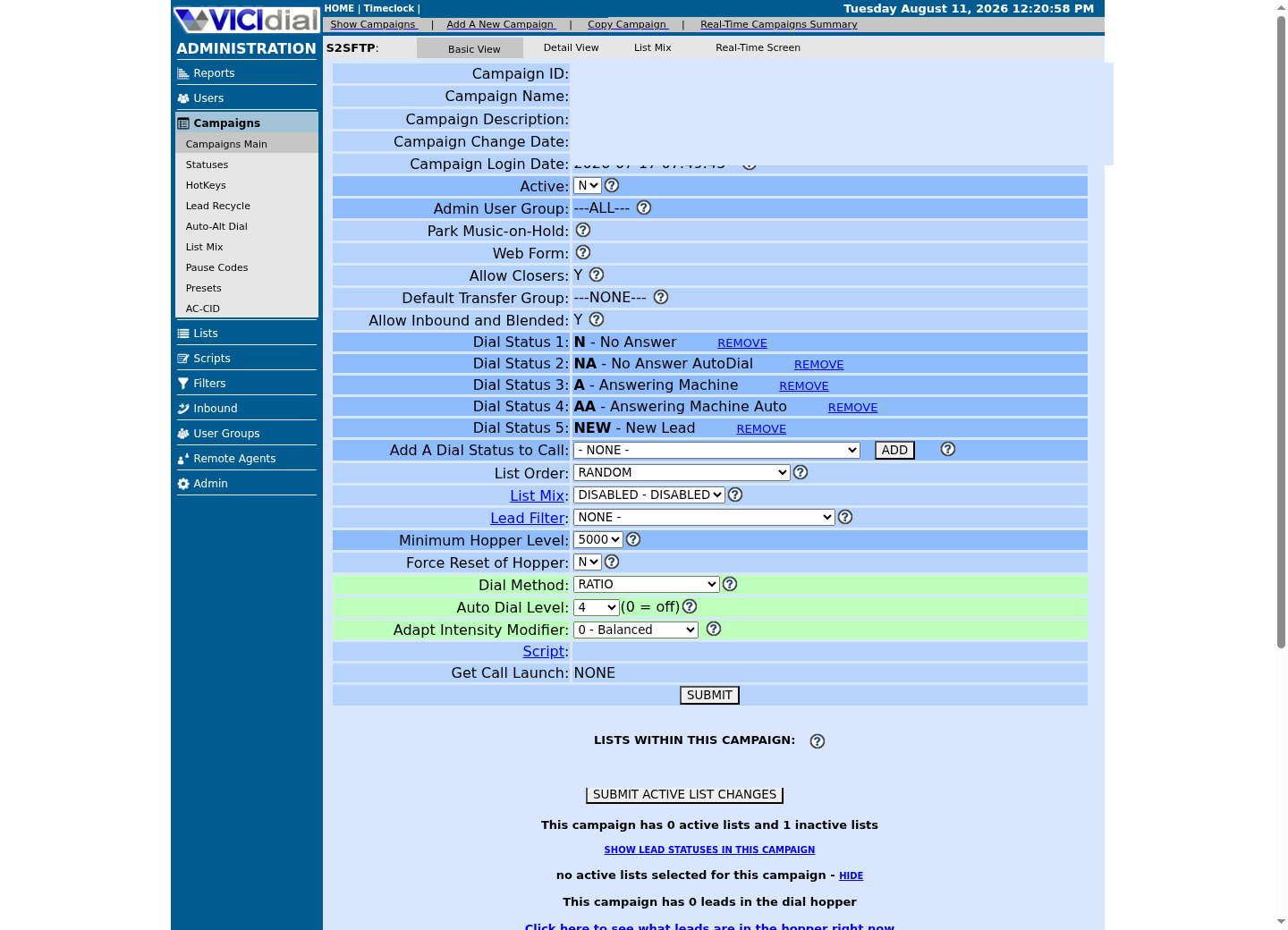
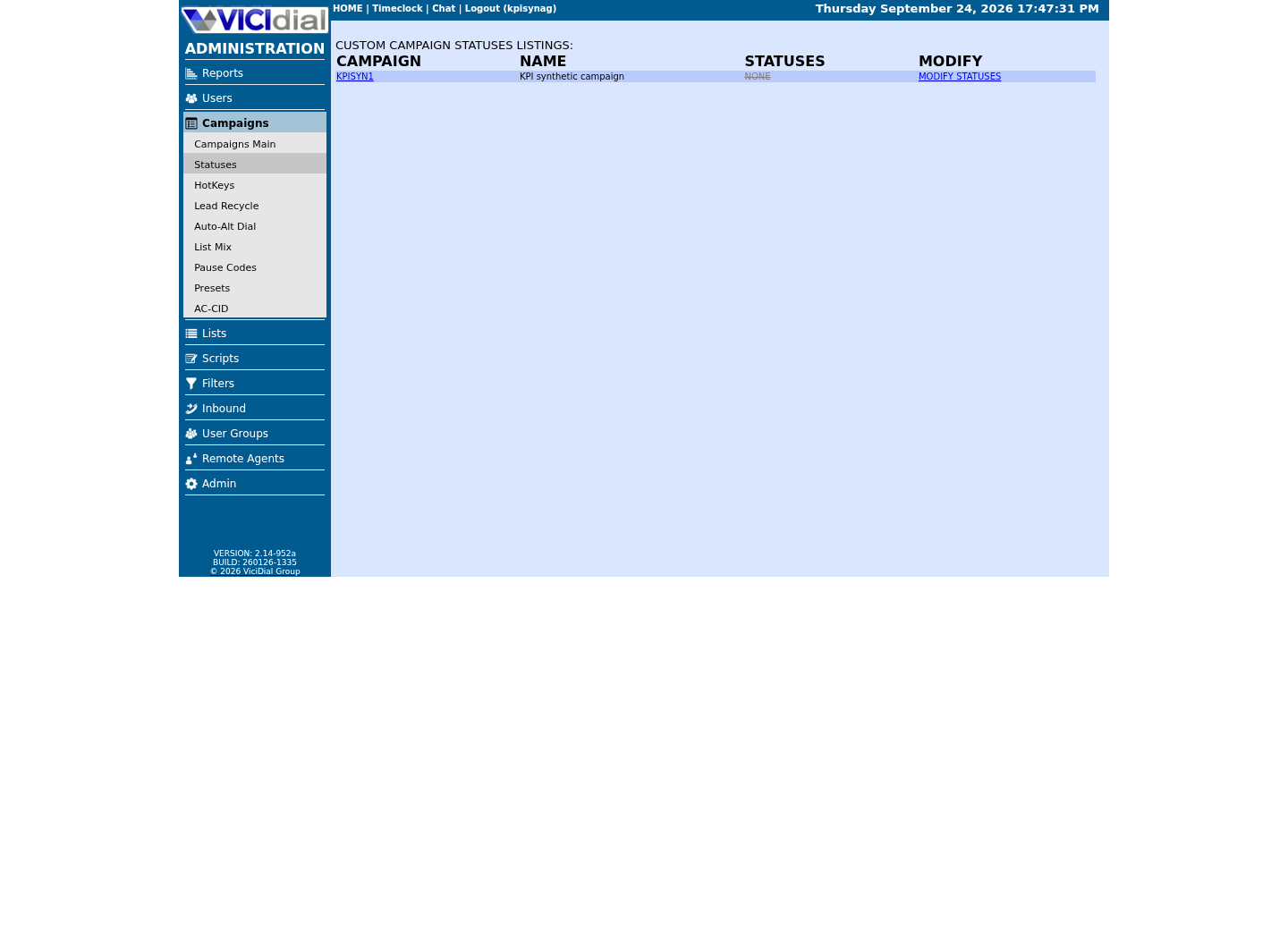
Captured on an isolated VICIdial demo: Administration screens on September 24, 2026, and the idle Agent screen on August 11, 2026. Each caption states its own capture time, and every sanitized image helps you recognize a related screen; none proves that this article's call, command, or result occurred.Start from Campaign Listings
Open the campaign detail page
Review statuses allowed for dialing
02 / 09
Step 1 — Create the user group
A user group comes first because three later screens, the user, the phone and the campaign, all ask you to pick an existing group from a dropdown. Skip this step and those screens have nothing to offer.
Open User Groups → Add a New User Group. Give it a short Group ID, for example SALESTEAM, and a Group Name. That is the only thing this first campaign needs from this screen.
Leave the allowed-campaigns list, forced timeclock login, and shift enforcement settings at their installed defaults. Those control workforce and multi-campaign scoping features that matter once you have more than one campaign or agent to separate; a single beginner campaign does not need them yet.
- Group ID and Group Name are the only fields this first campaign needs.
- Leave forced timeclock login and shift enforcement at their installed defaults.
03 / 09
Step 2 — Create the agent's user login
The user record identifies you personally to VICIdial, on the second page of the Agent login. Creating it right after the user group means the User Group dropdown on this screen already has something to select.
Open Users → Add A New User. Pick a short username, for example agent1, choose the user group you just created, and set User Level to 1, the standard level for a plain calling agent. Its Phone Login field is optional: whatever you put there auto-populates the phone-login box on the Agent screen's first page for this user, but it is only a convenience default, not a credential VICIdial checks — the phone record you create in the next step is what actually authenticates that first page.
Leave a higher User Level, API-only access, and forced two-factor authentication (2FA) untouched for this first agent. Those matter once more than one person logs in, or once something other than a human needs to authenticate.
- User Level 1 is a normal calling agent, not an administrator.
- The user's own Phone Login field is an optional auto-fill convenience, not the credential the agent actually types.
- Leave API access and forced two-factor authentication off for a first agent.
04 / 09
Step 3 — Create the phone (station) record, so Asterisk actually knows about it
This is the step where using Admin instead of raw SQL genuinely matters. A phone, sometimes called a station, is what generates the matching entry in Asterisk, the open-source telephony engine underneath VICIdial that actually places and receives calls — a SIP or PJSIP endpoint, depending on the phone's own Protocol setting. Insert that row directly with SQL instead, and Asterisk never learns the endpoint exists: the agent's login fails with no matching registration, and nothing in the users or lists tables will tell you why.
Open Admin → Phones → Add A New Phone. VICIdial's own install SQL ships only two generic templates, IAX_generic and SIP_generic; a webphone-capable template, if your build offers one, is normally added separately by whoever built the box — on our ViciBox 12 lab that is a template named vicibox12-RTC, protocol SIP, with Set As Webphone set to Y, so the agent can dial straight from the browser without a separate desk phone or SIP client. Pick whichever webphone template your own Template ID dropdown actually lists; do not assume a name from another install. Set the phone's own Agent Screen Login and Login Password — these, not anything on the user record, are what the agent types on the first page of the Agent screen — and give it a real Registration Password too: that is the device's own SIP/IAX secret (conf_secret in the database), shipped with the literal default `test`, which you must change before this phone is any use outside a closed lab.
Saving this screen is what marks the server for a configuration rebuild and regenerates the Asterisk endpoint behind the scenes. A raw INSERT into the phones table skips that rebuild entirely, which is the concrete version of the warning at the top of this article.
- Pick whichever webphone template your own build actually offers; VICIdial's base install ships only SIP_generic and IAX_generic.
- The phone's own Agent Screen Login, Login Password and Registration Password are what matter — change Registration Password away from its `test` default.
- Saving through Admin, never SQL, is what regenerates the Asterisk endpoint.
asterisk -rx 'sip show peer <PHONE_EXTEN>'Captured demo response · 2026-09-23 21:35 UTC. The displayed command is the command that ran; a safe subset label means it was filtered, redacted, or fixture-scoped. Replays only after you select Replay transcript.
- Before you run it
- Run this on the VICIdial server right after saving the new phone record in Admin, replacing <PHONE_EXTEN> with your own extension. This assumes a SIP phone, matching our ViciBox 12 lab's webphone template; for a PJSIP phone use `asterisk -rx 'pjsip show endpoint <PHONE_EXTEN>'` instead.
- Success looks like
- The command prints a peer (or endpoint) block for your extension, confirming the configuration generator picked up the phone you just saved.
- Stop if
- No matching object means the phone was not actually saved through Admin, the configuration rebuild has not run yet, or the extension does not match what you entered; reopen and re-save the phone record rather than editing Asterisk's generated files directly.
05 / 09
Step 4 — Create the campaign, then the list it will dial
A list can only be created once it has a campaign to belong to: the Lists screen's Campaign field only offers campaigns that already exist. So create a bare, inactive campaign first. Open Campaigns → Add A New Campaign and set just a Campaign ID, for example SALES1, a Campaign Name, and the user group from step 1, leaving Active at No. Every other dialing setting on this first screen can wait for the next step.
Now open Lists → Add A New List. Give it a List ID, a plain number such as 1001, a List Name, and select the campaign you just created from the Campaign dropdown. Set the list's own Active flag to Y, and leave Local Call Time set to the literal value campaign, so the list simply inherits whatever calling-hours window you set on the campaign instead of keeping a second schedule to maintain.
The list you just created is intentionally empty. Loading real contact records into it from a CSV (comma-separated values) file is the subject of the next article. A list with zero leads cannot feed the hopper, the queue of leads a campaign is actively about to call, so nothing will dial no matter how the campaign below is configured.
- Create the campaign shell before the list, even though its dialing settings are unfinished, so the list has something to attach to.
- List Active = Y is fine now; the campaign's own Active flag is what actually gates dialing.
- Local Call Time = campaign on the list keeps one calling-hours setting instead of two.
06 / 09
Step 5 — Finish the campaign settings that tie it together
Reopen the campaign from the previous step, Campaigns → Modify, and set the handful of fields that actually decide what happens the moment an agent logs in. Everything else on this long screen can wait for a later article.
Dial Method: set it to MANUAL. Manual dialing means an agent clicks DIAL NEXT NUMBER to pull the next eligible lead from the campaign's own hopper, one at a time, instead of VICIdial placing calls ahead of an agent; auto_dial_level is locked at 0 for a MANUAL campaign. Every automatic dial method assumes a manual campaign already works end to end, so prove that first.
Active: set this to Y once every other field on this screen is correct and Dial Method is confirmed MANUAL. Active is what makes the campaign selectable on the Agent login screen at all, so it must be Y before the first agent login two articles from now — an inactive campaign cannot be chosen at that screen, full stop. Dial Method staying MANUAL, not Active=N, is what keeps this safe: a manual campaign never dials on its own, active or not.
Manual Dial List ID: not what it sounds like. VICIdial's own documentation defines it as the list_id assigned to a brand-new lead record, created when an agent manually dials a number that is not already an existing lead; its default is 999. Point it at the list you created in the previous step so any such new record lands somewhere sensible, but do not expect it to restrict which list DIAL NEXT NUMBER searches — that always comes from this campaign's own hopper.
Local Call Time: choose the calling-hours window that is genuinely correct for the people you plan to call. The hopper will not stage a lead outside its list's permitted window at all, so a 24-hour setting is sometimes used deliberately on an isolated lab to rule that out while testing the internal echo route later in this path — but restore real, permitted hours before this campaign ever reaches a real number; dialing outside them is a compliance problem as much as a technical one.
Dial Prefix and Manual Dial Prefix: Dial Prefix defaults to `9` on a new campaign, because VICIdial's own shipped dialplan pattern, `_91NXXNXXXXXX`, needs a leading 9. Manual Dial Prefix defaults to empty, which simply falls back to whatever Dial Prefix holds. The digits VICIdial actually dials, for a manual call the same as an automatic one, are Manual Dial Prefix (or Dial Prefix, if Manual Dial Prefix is empty) plus phone_code plus phone_number — or just prefix plus phone_number if Omit Phone Code is Y, though its own default is N — and any prefix containing the letter `x` is replaced with nothing at all before dialing. If you completed the optional carrier article using that shipped pattern, the installed `9` default is already correct; leave it. If you have not added a carrier yet, change Dial Prefix to `x` instead of leaving the `9` default in place, so a manual test call later in this path dials only phone_code plus phone_number, with nothing extra prepended that nothing in your dialplan expects.
Leave alone for now: campaign recording mode, drop call seconds and action, hopper level, auto dial level, available-only ratio tally, list order mix, and caller ID selection. Every one of those governs automatic dialing behavior a manual campaign does not use yet; changing them now only adds settings you will need to remember later.
- Dial Method = MANUAL — this is the actual safeguard, not the Active flag; it also locks auto_dial_level at 0.
- Active = Y once every field on this screen is correct; it must be Y before the first agent login.
- Manual Dial List ID only sets where a brand-new manually-dialed lead lands (default 999); it does not restrict what DIAL NEXT NUMBER can select.
- Dial Prefix defaults to `9`; leave it if you completed the optional carrier article, or change it to `x` if you have not.
- Local Call Time must reflect real permitted calling hours before a real number, never an unrestricted lab value.
- Recording mode, drop settings, hopper level and auto dial level can wait for a later article.
07 / 09
Verify the five records before your first test call
Confirm what you actually built with a read-only account, not the Admin screens' word for it and not a database write. A SELECT statement cannot change anything; treat any command that could as a reason to stop and reopen the matching Admin screen instead.
VICIdial's live schema enforces none of this with database-level foreign keys; the Admin screens and their dropdowns are what keep these five records consistent with each other. That is exactly why a raw SQL edit is risky here: nothing in the database itself stops an orphaned list, a campaign pointed at a user group that no longer exists, or a phone extension that matches no user, while Admin's own validation is normally the only thing preventing that mismatch.
- Use a dedicated read-only account, never a password typed on the command line.
- One row per query is the expected healthy result.
- A missing or mismatched row means an Admin screen needs to be reopened, not a row that needs a manual SQL fix.
SELECT campaign_id, active, dial_method, manual_dial_list_id, dial_prefix, manual_dial_prefix, omit_phone_codeFROM vicidial_campaigns WHERE campaign_id = '<CAMPAIGN_ID>'; SELECT list_id, campaign_id, active, local_call_timeFROM vicidial_lists WHERE list_id = '<LIST_ID>'; SELECT user, user_group, phone_login, activeFROM vicidial_users WHERE user = '<AGENT_USER>'; SELECT extension, protocol, template_id, activeFROM phones WHERE extension = '<PHONE_EXTEN>'; SELECT user_group, group_nameFROM vicidial_user_groups WHERE user_group = '<USER_GROUP>';Captured demo response · 2026-09-23 21:35 UTC. The displayed command is the command that ran; a safe subset label means it was filtered, redacted, or fixture-scoped. Replays only after you select Replay transcript.
- Before you run it
- Run these five SELECT statements with the read-only account, for example `mysql --defaults-extra-file=/etc/vicidial-readonly.cnf -e "..."` one statement at a time, after saving all five Admin screens above. Replace each placeholder with the ID you actually used; never type a database password directly on the command line.
- Success looks like
- Each query returns exactly one row, and the values, especially dial_method, active, dial_prefix, manual_dial_prefix and omit_phone_code, match what you actually entered in Admin.
- Stop if
- A missing row means that Admin screen was never saved. A value that does not match usually means a required field was left blank and the form silently reverted it; fix that by reopening the Admin screen, not by editing the row directly.
08 / 09
Troubleshoot: common first-campaign mistakes, and how to stop safely
Most first-campaign problems trace back to the creation order above, not to VICIdial itself. If the agent cannot log in at all, check the phone and user records' login and password pair first; a mismatch between the two is the single most common cause.
If Admin lets you save a phone record but the agent still cannot register, stop and rerun the Asterisk endpoint check from the phone step above before changing anything else. A missing endpoint means the configuration rebuild has not actually happened, not that the phone settings themselves are wrong.
If a manual test call never rings anywhere, once you reach the agent screen two articles from now, check Dial Prefix and Manual Dial Prefix against what your dialplan actually expects: the installed `9` default for the shipped carrier pattern, or `x` if you deliberately changed it for a no-carrier lab setup. A prefix mismatch fails silently: the call simply never matches an outbound route.
The safest rollback for a bad save is deleting that single record from its own Admin screen, Delete User, Delete Phone, Delete List or Delete Campaign, and recreating it, never a manual DELETE FROM in SQL, since the schema enforces none of these relationships for you.
Double-check Dial Method before you ever set Active to Y: MANUAL is the actual safeguard, not the Active flag. An active campaign left on an automatic dial method by mistake can start placing calls the moment an agent logs in and goes ready, so confirm Dial Method every time you touch this screen, not only once.
- A login failure usually means the phone and user login and password pairs do not match exactly.
- A missing Asterisk endpoint means Admin was not used to save the phone, or the rebuild has not run yet.
- A silent, never-ringing manual call usually means a dial-prefix mismatch against whatever pattern is supposed to match.
- Delete and recreate a single record through its own Admin screen rather than editing the database directly.
09 / 09
Next: load your first leads
You now have one user group, one agent login, one phone, one empty list and one campaign, wired together in the order that actually works: Dial Method MANUAL, Active Y only once every field was confirmed correct, pointed at the right list and the right dial prefix for your setup, and confirmed with read-only SQL rather than assumed. That is the complete minimum working set; nothing dials on its own until an agent clicks DIAL NEXT NUMBER.
The list itself is still empty. The next article in this path, Load leads into VICIdial from a CSV file, picks up exactly here: mapping columns, loading a real batch of contact records into the list you just created, and confirming they appear correctly before your first live manual test call.
Evidence ledger
Verification basis
- Confirmed columns used above: vicidial_user_groups (user_group, group_name, allowed_campaigns), vicidial_users (user, user_group, phone_login, phone_pass), phones (extension, protocol, template_id, is_webphone, user_group), vicidial_lists (list_id, campaign_id, active, dial_prefix, local_call_time), and vicidial_campaigns (campaign_id, active, dial_method, manual_dial_list_id, dial_prefix, manual_dial_prefix, local_call_time) — these are the real columns your Admin screens write to.
- PJSIP_SUPPORT.txt documents the shipped `_91NXXNXXXXXX` dialplan pattern, which is why Dial Prefix defaults to `9` on a new campaign and why that default is correct once that pattern is in use.
- On our ViciBox 12 lab, the database has zero enforced foreign keys (a REFERENTIAL_CONSTRAINTS count of 0); VICIdial's own Admin screens, not the database, are what keep a user group, user, phone, list and campaign consistent with each other.
Primary references
Sources
- Official VICIdial statuses referenceVICIdial · accessed August 5, 2026
- Official VICIdial PJSIP support documentVICIdial · accessed August 5, 2026