01 / 04
1. Gather the phone settings
A phone station and an agent are separate records. The agent uses learner1 and its agent password. The station uses 8001 and its own Login Password. Its Registration Password is a different secret used to register the browser phone.
Use the working phone configuration sheet collected in lesson 3. It must tell you the server, protocol, required defaults and any configuration to apply after saving. The Add form may inherit defaults such as PHONE_DEFAULTS; these depend on the installation.
02 / 04
2. Create phone 8001
If the lab owner has already prepared station 8001 for you, open that record and continue with the checks below. Otherwise create it using your lab’s documented configuration.
- Open Admin in the left menu, then click Phones.
- Choose Add A New Phone.
- Enter the values below and the remaining values from your lab’s configuration sheet.
- Select SUBMIT, then reopen 8001 from Show Phones. Apply any documented configuration or webphone options on the saved record.
- Phone Extension
- 8001The lab phone ID.
- Dial Plan Number
- 8001Matches this station.
- Voicemail Box
- Lab owner’s valueUse the documented value if required.
- Outbound CallerID
- Lab owner’s valueUse the documented lab setting.
- Admin User Group
- Lab owner’s valueControls admin visibility.
- Server IP
- Lesson 3 serverUse the server hosting this phone.
- Agent Screen Login
- 8001Station login for the Agent screen.
- Login Password
- Choose a strong station passwordKeep it separate from the agent password.
- Registration Password
- Choose a different strong passwordUsed by the browser phone to register.
- Status
- ACTIVEMakes this station available.
- Active Account
- YEnables the station account.
- Phone Type
- Value from the lab configuration sheetUse the label required by your working phone configuration.
- Full Name
- Lab phoneA readable label.
- Client Protocol
- Lesson 3 protocolMust match the lab’s working phone configuration.
- Local GMT
- Lab time zone settingUse the documented local offset.
The phone station form
Open image to zoom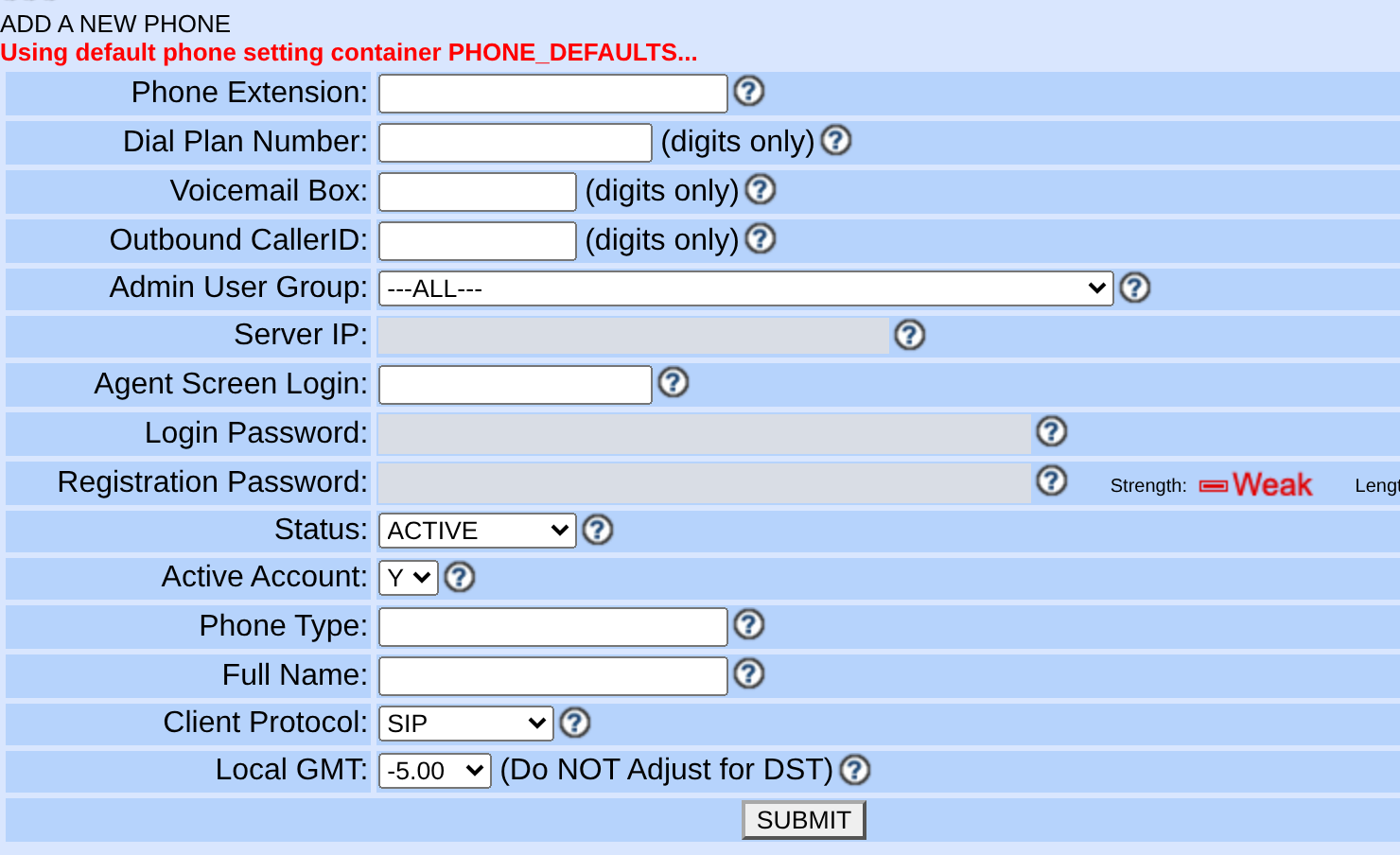
You should seeThe phone appears in the Phones list as 8001.
03 / 04
3. Check the saved phone
- Open Phones and select 8001.
- Confirm the login, server, protocol and configuration settings against lesson 3.
- Confirm Active Account is Y. Save and reopen after any correction.
You should seeThe saved record matches the lab configuration. Registration and audio will be tested later.
04 / 04
If it fails
If the configuration, protocol or server is unknown, return to lesson 3 and ask the lab owner. A generic configuration may not work for this browser phone.
Read any form error and check the required fields. If the Agent screen later rejects the station login, check its Login Password. Registration uses the separate Registration Password.
Primary references
Sources
- VICIdial public demonstrationVICIdial · accessed November 3, 2026
- VICIdial nightly sourceVICIdial · accessed November 3, 2026