01 / 04
1. Create the user group
A user group controls which campaigns its members may use. First create the lab group.
- In VICIdial Admin, click User Groups.
- Click Add A New User Group.
- Complete the fields below, then submit the form.
- Open User Groups again and select LABTEAM.
- In Allowed Campaigns, uncheck ALL-CAMPAIGNS and every individual campaign. Save the group.
- Group
- LABTEAMThe course group ID.
- Description
- Lab teamA readable name.
The user-group form
Open image to zoom
You should seeReopen LABTEAM: no Allowed Campaigns boxes are checked. In lesson 7 you will check only LAB01.
02 / 04
2. Add the agent
The agent account belongs to a person. Its password is separate from the phone station passwords in the next lesson.
- Click Users, then Add A New User.
- Complete the fields below and submit.
- Find learner1 under Show Users and open the record.
- Set Agent Call Manual to 1. Save the changes.
- User Number
- learner1The agent login.
- Password
- Choose a strong, unique passwordStore it privately.
- Full Name
- Lab learnerA readable name.
- User Level
- 1A low-privilege agent.
- User Group
- LABTEAMConnects the agent to the lab group.
- Phone Login
- Leave emptyOptional phone-login autofill.
- Phone Pass
- Leave emptyOptional phone-password autofill.
The agent account form
Open image to zoom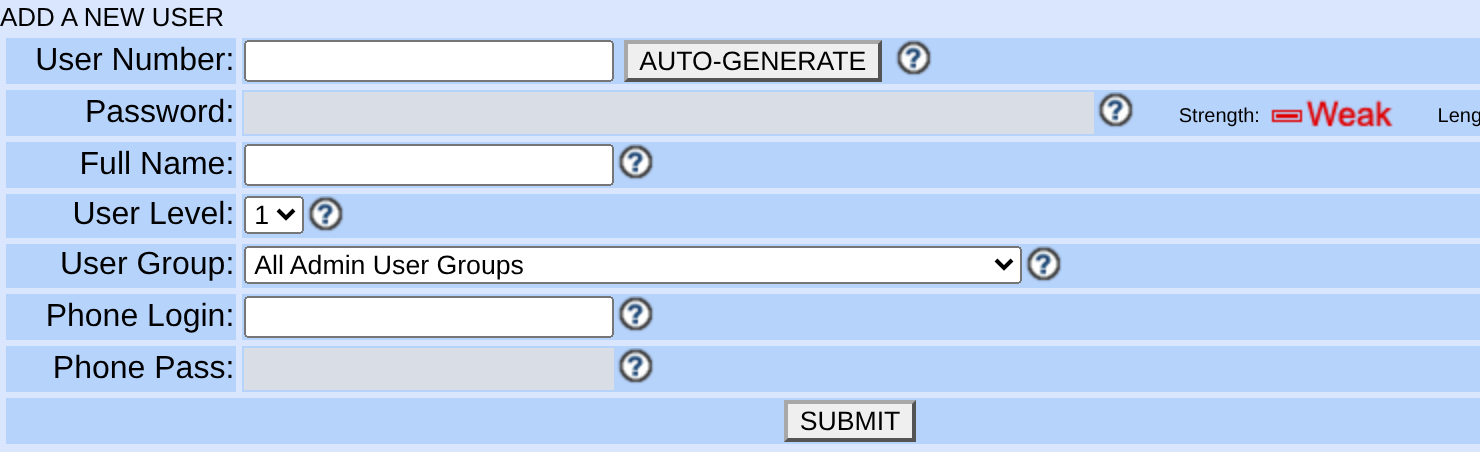
You should seeThe saved learner1 record shows LABTEAM, level 1, Active Y and Agent Call Manual 1.
03 / 04
3. Check the saved records
- Open User Groups and select LABTEAM. Confirm its name.
- Open Users and select learner1. Confirm the group, level and manual calling permission.
- Save any corrections and reopen the record.
You should seeBoth records are present. The agent will receive campaign access in lesson 7.
04 / 04
If it fails
If LABTEAM or learner1 already exists, ask the lab owner before changing it. Use an agreed unused ID throughout the course if needed.
If a menu is missing, ask the lab administrator to check your permissions. If a save fails, read the form error and correct the field it identifies.
Primary references
Sources
- VICIdial public demonstrationVICIdial · accessed November 3, 2026
- VICIdial nightly sourceVICIdial · accessed November 3, 2026