01 / 04
1. Sign in to Admin
Admin is where you prepare the calling work; the agent uses a separate screen later. Use the exact address and administrator credentials supplied by your lab owner.
The administrator login is separate from learner1 and station 8001, which you will create later. If the owner says the account needs its initial password changed, ask them for the procedure for this installation before continuing.
- Open a browser and enter the lab’s HTTPS Admin address.
- When the browser asks for a username and password, enter the administrator credentials and submit them.
- Confirm that the VICIdial administration page opens.
You should seeThe Admin page is open and its navigation menu is visible.
02 / 04
2. Find the setup menus
Use the left navigation to find the places you will visit in the next lessons. For now, look around without saving changes.
- Select User Groups to find the area for LABTEAM.
- Select Users to find the area for learner1.
- Select Campaigns for LAB01 and Lists for 90001.
- Select Admin, then Phones, to find the area for station 8001.
The Admin menu
Open image to zoom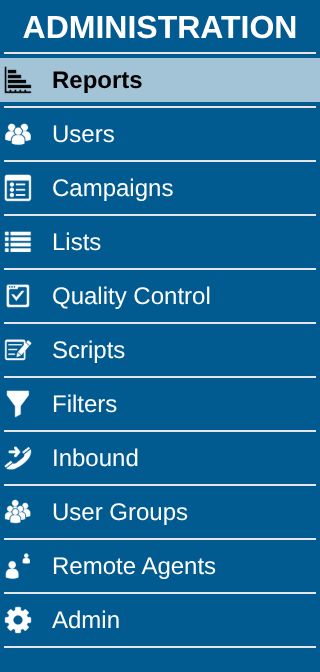
03 / 04
3. Check the result
You are ready to continue when you can find the menu for each practice record.
- User Groups and Users are visible.
- Campaigns and Lists are visible.
- Admin → Phones is visible.
04 / 04
4. If you cannot get in
If the browser reports a certificate problem or the login prompt repeats, ask the lab owner to check the address, connection and credentials. A missing menu may mean your account needs different permissions.
Primary references
Sources
- VICIdial demonstrationVICIdial Group · accessed November 3, 2026
- VICIdial project overviewVICIdial Group · accessed November 3, 2026