1. Identify which login failed
- On the first Agent login page enter Phone Login 8001 for the companion lab and its assigned Phone Password, then submit.
- If the page says the phone login and password are not active, note that message and stop at this station check. The next screen requests the separate agent User Login, User Password and campaign.
- If the error occurs only after a session was already established, record its exact wording and time; investigate the session rather than assuming the first phone login failed.
Agent phone login and password form.
Open to enlarge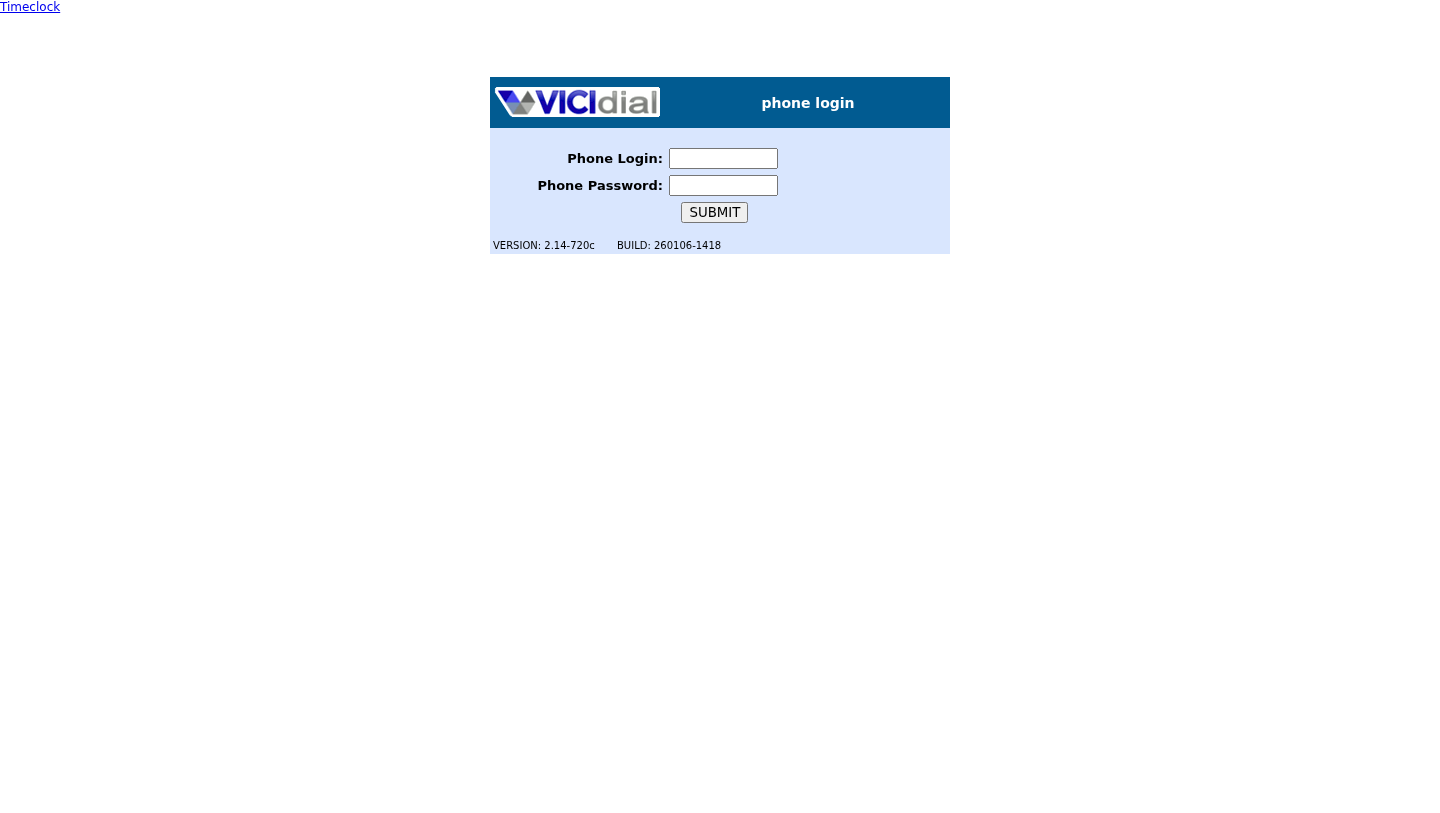
You should seeReaching the user-and-campaign screen is the expected result of a successful station login; it does not prove SIP registration or audio.
2. Inspect the assigned phone record
- In Admin → Phones → Show Phones locate the assigned extension 8001 and open its Modify record on the intended server.
- Compare Agent Screen Login to the first-screen Phone Login. Check Active Account is Y and verify the Server IP is the assigned dialer; do not read out or copy either password.
- If Active Account is N and the station is approved for use, record the original value, set it to Y on the Modify screen and submit. Reopen the record to verify the saved value.
Enter the phone station
Open to enlarge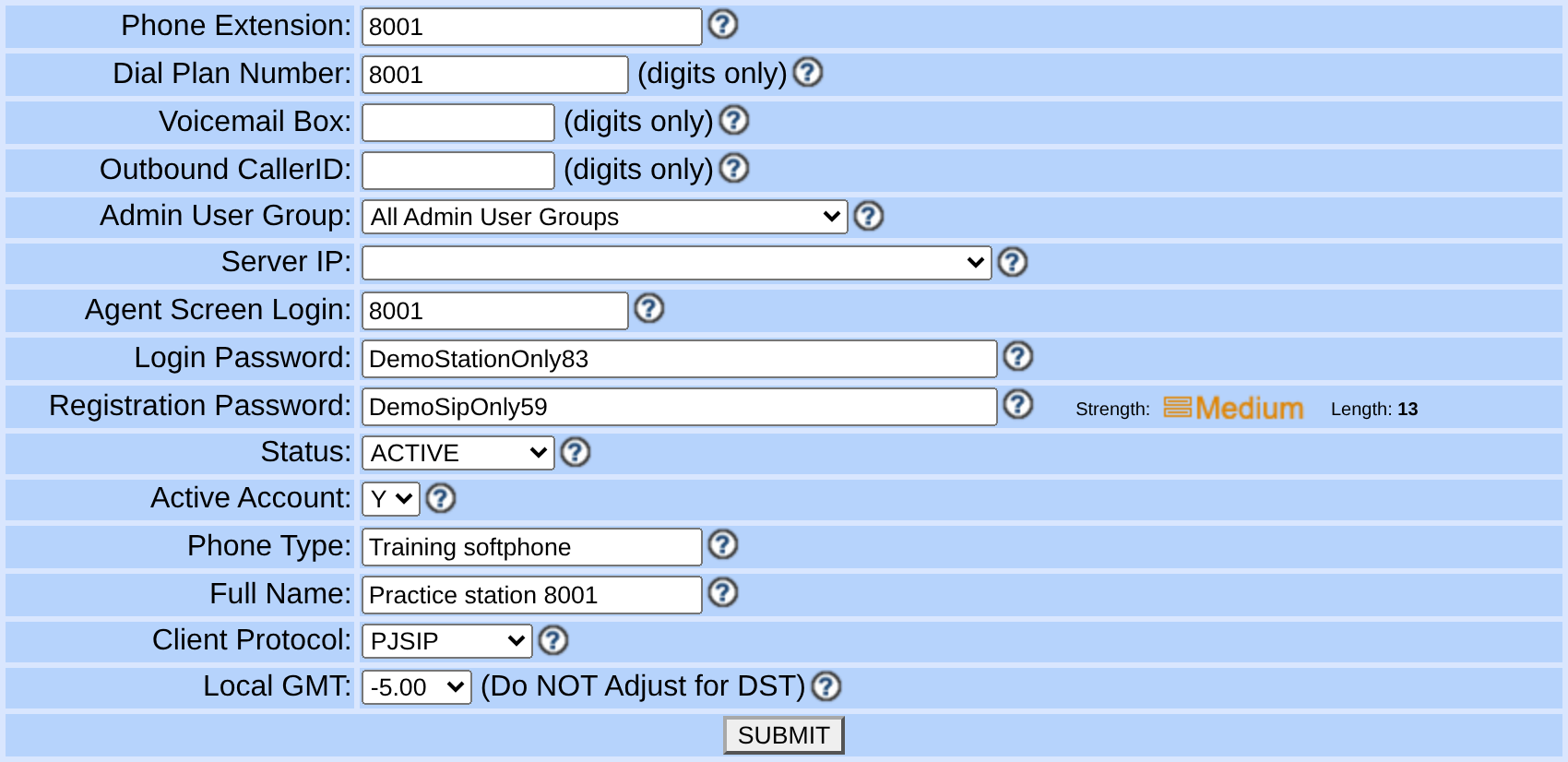
Capture details
Shown passwords are fictional and must not be reused. Voicemail and caller ID are empty; −5.00 is an illustrative standard UTC offset. This is not a saved or registered phone. Actual browser capture, November 4, 2026; Admin 2.14-969a build 261102-0125.You should seeThe filled Add form identifies the station login, separate passwords and Active Account controls. It is an unsaved example with no Server IP selected; diagnose your assigned station on its saved Modify screen.
3. Correct only the mismatched credential
- Compare the first-screen Phone Login with Agent Screen Login on the phone record. Use the assigned station Login Password, not the agent User Password or Registration Password.
- If the station password is unknown or confirmed incorrect, have the authorized administrator set a new Login Password in the phone record and deliver it securely to the test agent.
- If the user record supplies optional Phone Login or Phone Pass autofill, update or clear only the stale autofill through Users; a blank autofill does not prove the phone record is missing.
You should seeAfter a correction, the first screen should accept the station pair; the separately configured Registration Password belongs to the phone's SIP registration.
4. Check assignment and duplicate records
- If the matching login cannot be found, search Phones for the actual station login and confirm the correct server and extension with the administrator.
- If more than one phone record has that login, inspect their assignments and server before changing either. Shared user autofill alone does not prove a live station collision.
- If a station is already in use or the active flag repeatedly reverts, pause the test and ask the provisioning owner to inspect the assignment or automation.
You should seeThe intended station must be unambiguous before another login attempt.
5. Retry and isolate the next failure
- Have the test agent retry the first phone screen once with the corrected station pair.
- On the second screen use learner1 and LAB01 only if the companion records are provisioned; resolve a rejection there against the agent user and campaign permissions.
- If the first screen still rejects the correct active station, restore any changed setting if necessary and send the administrator the exact error, station ID and time without a password.
Agent user login, password and campaign form.
Open to enlarge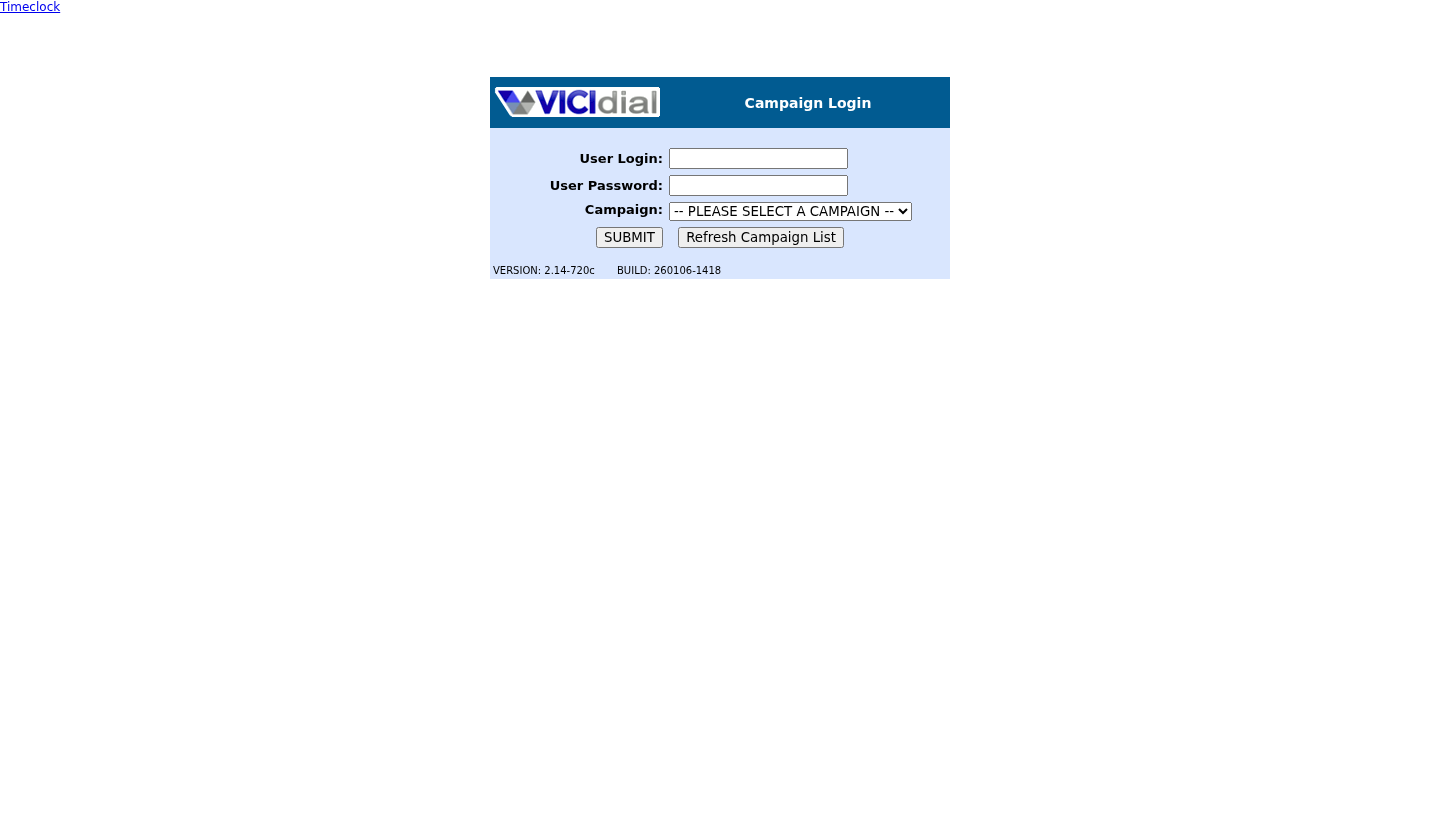
You should seeA successful station login is established by reaching the second screen; registration and two-way audio require separate tests.
Checks and sources
What was checked
- Instructions are based on the linked project documentation and sanitized interface captures. The captures do not prove registration, a completed call, a transfer, callback or audio quality.
- The lab runs VICIdial SVN 4037, database schema 1748 and Asterisk 18.26.4-vici. Labels, enabled features and provider requirements can differ on another installation.
Primary references
Sources
- VICIdial Agent API referenceVICIdial Group · accessed November 4, 2026
- VICIdial PJSIP supportVICIdial Group · accessed November 4, 2026
- VICIdial Non-Agent API referenceVICIdial Group · accessed November 4, 2026