01 / 04
1. Sign in to the station and campaign
- Open the Agent URL; enter the assigned Phone Login and Phone Password, then submit.
- Enter the agent User Login and User Password and select the approved test campaign.
- Connect the phone or browser station as directed and remain paused while you check the controls.
Agent phone login and password form.
Open to enlarge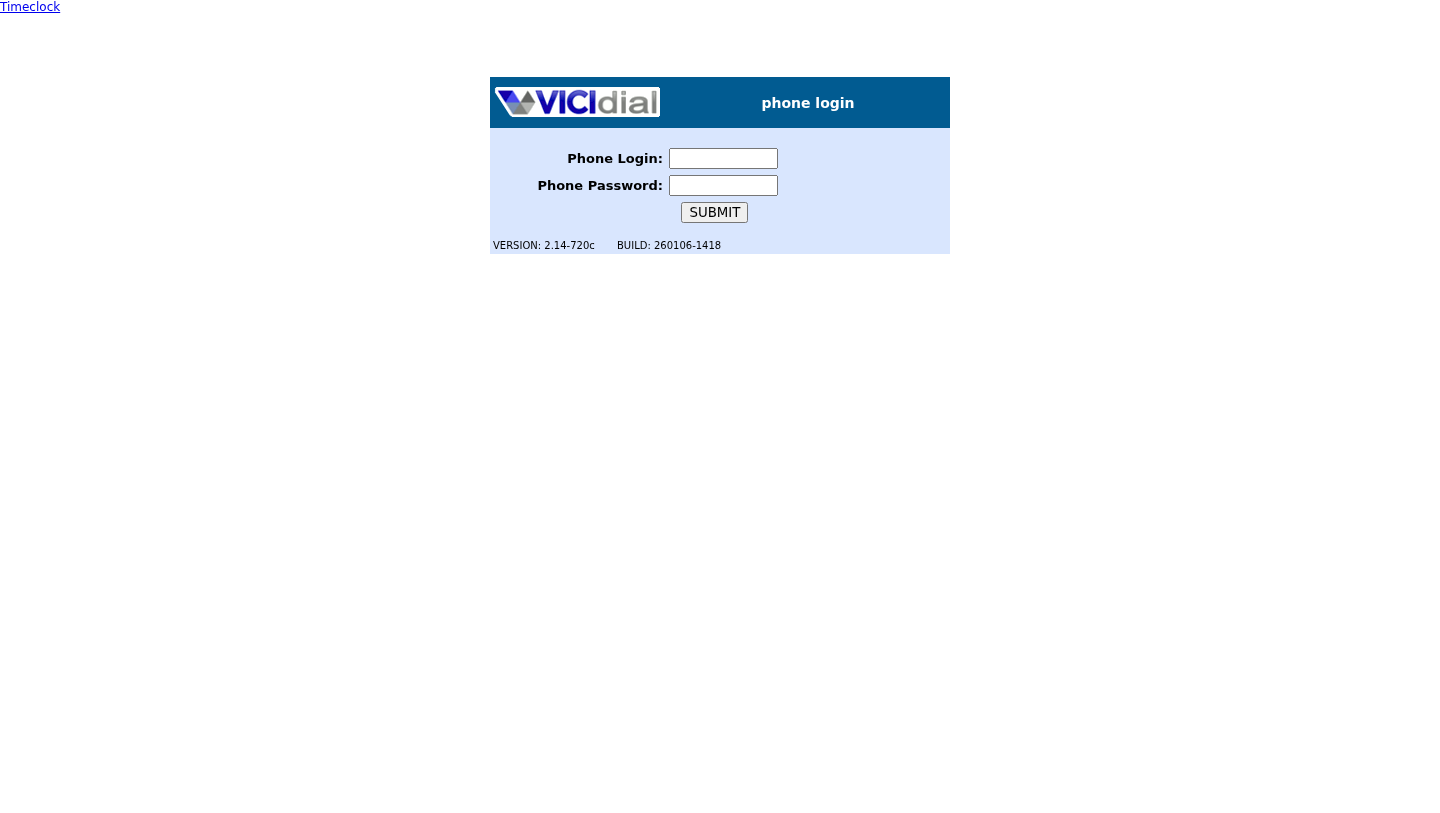
You should seeThe Agent workspace appears. If station or campaign login fails, stop and ask the administrator to check that specific account and permission.
02 / 04
2. Preview the practice lead and dial
- For the companion lab, first confirm LAB01 is a MANUAL campaign with Manual Preview Dial set to PREVIEW_AND_SKIP and that active list 90001 contains only the three course leads.
- While PAUSED, check LEAD PREVIEW and select DIAL NEXT NUMBER. If the preview control or lead is missing, stop; check Agent Call Manual, the campaign preview setting, list status and hopper readiness.
- Inspect the preview: Test One, Test Two or Test Three; Phone Number 9001001; Phone Code 1. If another record appears, select SKIP LEAD and stop. Note the lead ID, then select DIAL LEAD.
- The prepared campaign must route the constructed 19001001 to its verified internal Echo destination. Do not enter that constructed route as the lead’s Phone Number or assume it exists elsewhere.
Idle Agent screen with call controls and blank lead details.
Open to enlarge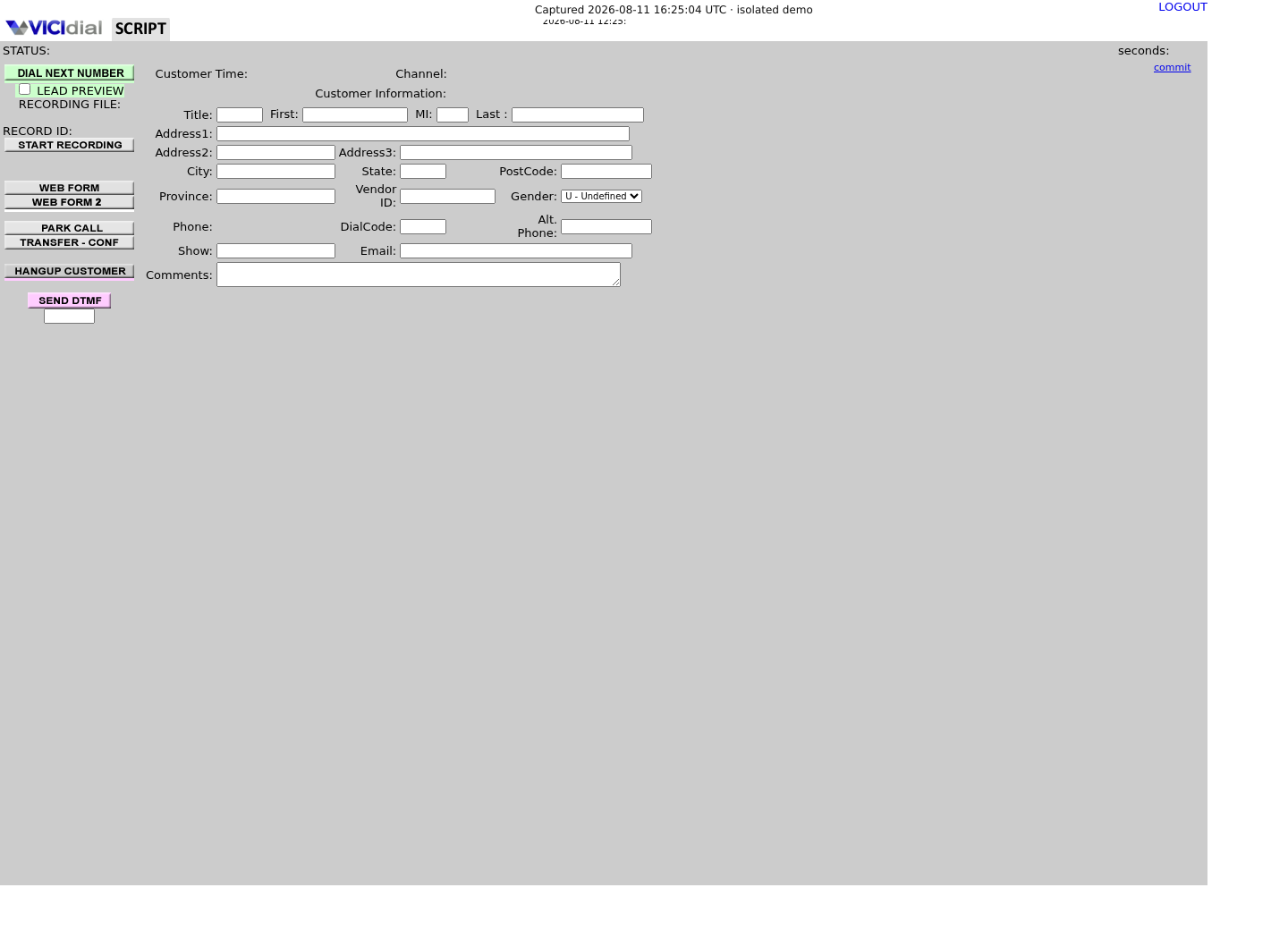
You should seeWait for call progress and Echo to answer. The idle Agent image shows controls, not a connected call.
03 / 04
3. Check audio and end the test
- For the prepared internal Echo route, say a short sentence and listen for your own voice to return. For a separate consenting test participant, each side confirms hearing the other.
- Select HANGUP CUSTOMER, wait for the disposition screen and select the outcome that describes the actual test.
- If no answer or one-way audio occurs, note the time, displayed status and direction heard; hang up and pause rather than repeatedly dialing.
You should seeEcho tests only the internal lab audio path; a separate carrier call tests a different path. No successful call is asserted by this guide.
04 / 04
4. Save and verify the outcome
- Choose the campaign's designated test disposition and submit it once.
- In Reports → User Stats, filter for the test user and date; compare the time, campaign and saved status with the test.
- If the record is missing, check the date and user filter, then ask the supervisor to inspect the correct server and report.
Enter User Stats filters
Open to enlarge
Capture details
Call status is empty for any status; a nonempty value is an exact disposition filter. No report was submitted and no call or report row was demonstrated. Actual browser capture, November 4, 2026; Admin 2.14-969a build 261102-0125.You should seeThe test row should match the approved call and status; a blank report is not proof of a call.
Checks and sources
What was checked
- Instructions are based on the linked project documentation and sanitized interface captures. The captures do not prove registration, a completed call, a transfer, callback or audio quality.
- The lab runs VICIdial SVN 4037, database schema 1748 and Asterisk 18.26.4-vici. Labels, enabled features and provider requirements can differ on another installation.
Primary references
Sources
- VICIdial Agent API referenceVICIdial Group · accessed November 4, 2026
- VICIdial status definitionsVICIdial Group · accessed November 4, 2026