1. Identify the call's server and route
- In Admin, open the campaign used for the test and note Dial Prefix and Manual Dial Prefix; record the synthetic lead's phone code and number.
- Identify the dialer server assigned to this call and connect to that server over SSH. Do not assume the web server processes the call.
- Join the Asterisk console with the command below.
- Before you use it
- Run on the relevant Asterisk server with authorized CLI access; output may contain operational identifiers.
asterisk -rvvvReader-run example · not executed for this guide
This example has no recorded result here. Follow its preparation, expected result and stop conditions before using it.
- Success looks like
- Asterisk displays its CLI prompt.
- Stop if
- If it cannot connect, confirm the host and service with its administrator; do not restart it as a diagnostic step.
You should seeThe CLI connects to the Asterisk instance on the selected server.
2. Find the loaded context
- From the Asterisk prompt run `core show channels concise` during a supervised test to identify the relevant channel and context.
- Run `dialplan show <context>` with that observed context, replacing the placeholder. Find the extension or pattern matching the complete digits, including any prefix.
- Follow the next application and context rather than assuming every Local channel is the carrier leg.
You should seeThe loaded dialplan reveals the matching extension and next application. A channel listing is a snapshot and may be empty after the call ends.
3. Compare the carrier route
- In Admin → Carriers → Show Carriers open the test carrier on the assigned server. Find Dialplan Entry and Account Entry; do not copy credentials or real provider addresses into a shared ticket.
- Compare Dial Prefix and Manual Dial Prefix from the campaign with the lead’s Phone Code and Phone Number. The official PJSIP example _91NXXNXXXXXX matches prefix 9 + phone code 1 + a ten-digit NANP number.
- For an uncalled illustration, 9 + 1 + 2025550123 gives 912025550123. In the official route ${EXTEN:1} removes the leading 9; this example does not establish that any provider accepts the remaining digits.
- If your actual built digits do not match the route, record the prior values and ask the carrier and campaign administrators to review the precise field; re-open the record after an approved correction.
Enter a carrier example
Open to enlarge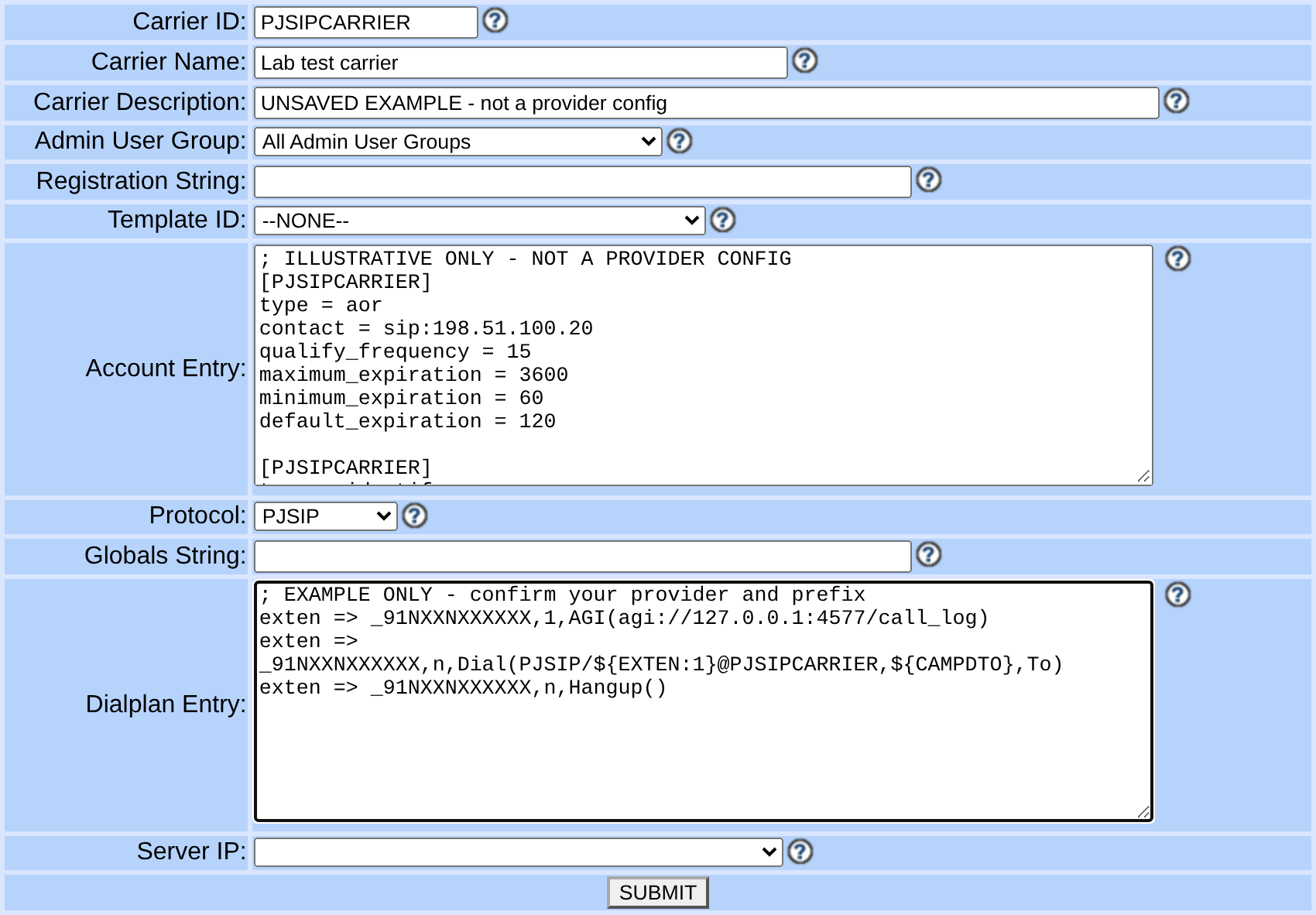
Capture details
DTMF, codecs, routing, authentication and server must come from your reviewed provider and installation settings. Server IP is unselected. No carrier, registration or call was created. Actual browser capture, November 4, 2026; Admin 2.14-969a build 261102-0125.You should seeThe blank Add Carrier screenshot shows where the dialplan field is located, not a saved carrier or successful call.
4. Verify a correction
- Record the old field value and change only the agreed test route in the managed Admin record.
- After the installation's normal configuration generation, inspect the loaded context again and run one authorized test.
- If the intended route is still absent or another route is affected, restore the recorded field value using the same managed path and escalate.
You should seeThe loaded route matches the approved record; call completion must be checked independently.
Checks and sources
What was checked
- Instructions are based on the linked project documentation and sanitized interface captures. The captures do not prove registration, a completed call, a transfer, callback or audio quality.
- The lab runs VICIdial SVN 4037, database schema 1748 and Asterisk 18.26.4-vici. Labels, enabled features and provider requirements can differ on another installation.
Primary references
Sources
- VICIdial PJSIP supportVICIdial Group · accessed November 4, 2026
- Asterisk command line interfaceAsterisk · accessed November 4, 2026