01 / 05
1. Sign in and pause
- Sign into the station, then the agent user and training campaign.
- Answer the station connection if required, confirm headset and microphone, and stay paused while preparing.
- If login fails, identify whether the phone or user screen rejected the credentials and report that specific step.
Idle Agent screen with call controls and blank lead details.
Open to enlarge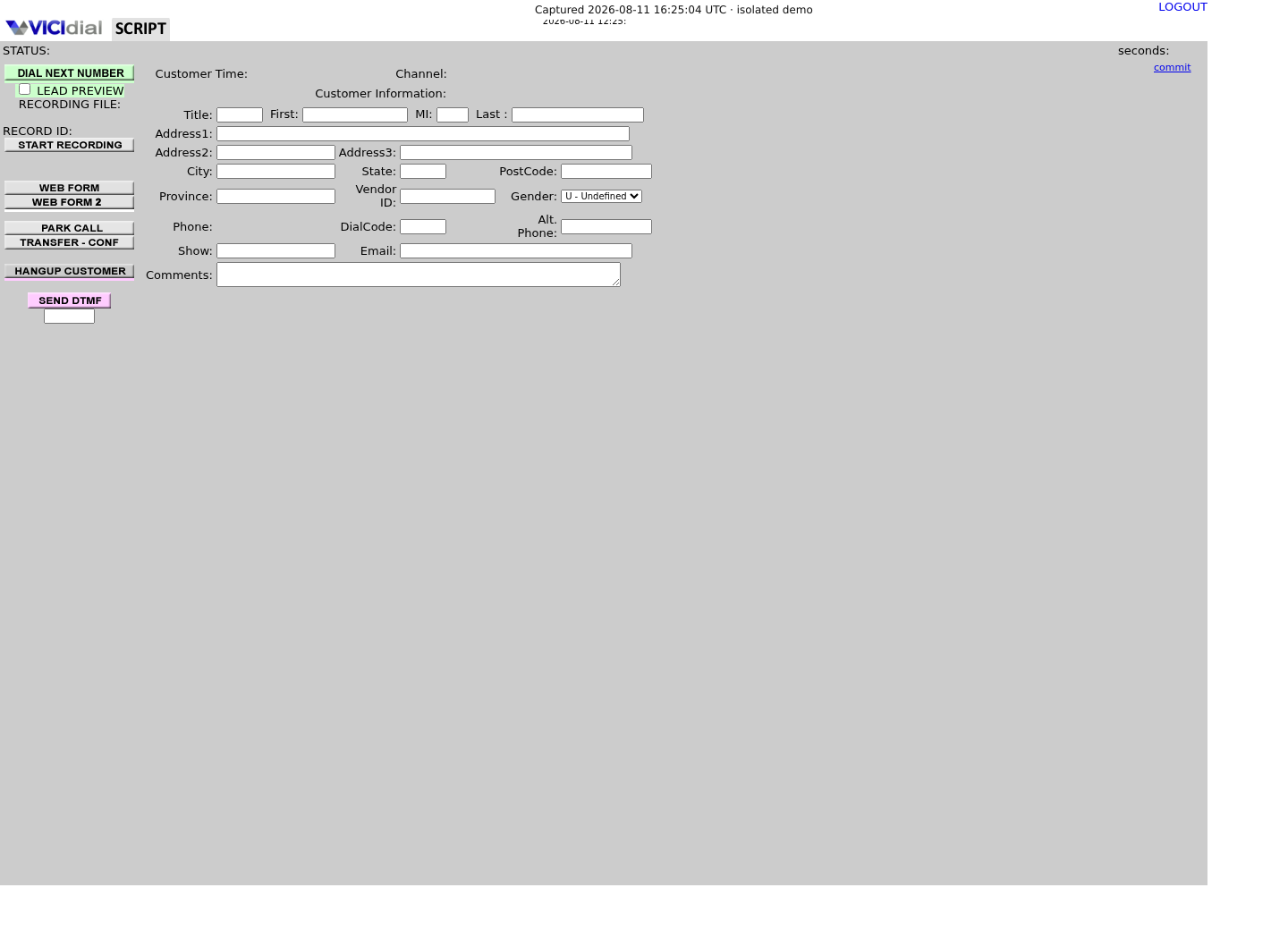
You should seeThe idle workspace is ready for a supervised test; this view does not prove audio.
02 / 05
2. Handle a test interaction
- For the prepared course fixture, select LAB01, use active list 90001 and keep the agent PAUSED. The phone and user credentials are supplied separately to station 8001 and learner1.
- If LEAD PREVIEW is enabled, select DIAL NEXT NUMBER, confirm Test One, Test Two or Test Three and phone number 9001001 with phone code 1, then select DIAL LEAD. If the preview shows another lead, select SKIP LEAD and stop.
- On the verified internal Echo route, speak and listen for your voice to return. For a separate consenting participant, ask both sides whether they can hear. If no call connects, pause and report the time and symptom.
You should seeThe fixture’s constructed internal route is 19001001; it exists only after the lab preparation. The guide does not claim this call was performed.
03 / 05
3. Practice one attended conference transfer
This branch uses Dial With Customer, then Leave 3-Way Call. The customer remains in the conference and can hear the recipient being called and introduced. It is an attended handoff, not a private consultation. Use an approved live test participant; the Echo exercise alone is not a human recipient.
- Before the test, ask the supervisor for the exact allowed transfer number and its effective prefix/phone-code behavior. Have the recipient ready and agree that a failed attempt will be canceled, not redialed repeatedly.
- While the test customer is connected, open Transfer-Conf. Leave CONSULTATIVE unchecked for this number-based branch; do not use Dial Override. Enter only the supervisor-approved value in Number to call. If the control, permission or route is absent, keep the original call and stop this branch.
- Select Dial With Customer once. Tell the customer that the recipient is joining; all connected participants may hear each other. Wait for the recipient to answer and confirm the intended customer/test reference.
- If the recipient does not answer or is wrong, select Hangup Xfer Line to end only that third-party leg. Confirm you can still speak to the original customer, then close the transfer panel and continue or end the original call. Do not use Hangup Both Lines to cancel just the recipient.
- After both parties confirm the handoff, select Leave 3-Way Call once. This removes the original agent from the conference and opens that agent’s disposition workflow while customer and recipient remain together.
- Have the recipient confirm the customer is still connected after the agent leaves. Save the designated training transfer disposition and ask the supervisor to compare the call/transfer timestamps. If the recipient loses the call, record the failure; do not mark a successful transfer.
You should seePass only when the recipient confirms the continuing customer call, the original agent leaves and the designated outcome is saved. This source-reviewed branch has not been executed for this article; retained idle media does not show a transfer.
04 / 05
4. Schedule the agreed follow-up
- After ending the customer leg, choose the campaign’s callback disposition if offered. For agent-only follow-up, select the agent-only option shown by this build; USERONLY is an API value and may not be the visible label.
- For the synthetic example use owner learner1, a future date and time in the confirmed displayed time zone, and the note LAB CALLBACK TEST. Check those entries and submit once.
- Open the callback list and compare owner and time. If the option or saved task is missing, check the user’s Scheduled Callbacks and Agent-Only Callbacks settings before creating another.
You should seeA scheduled callback is a follow-up task, not evidence that another call has occurred. No callback screen or saved task was captured.
05 / 05
5. Disposition and log out
- For a call that is not scheduled for callback, choose the disposition matching the actual outcome and submit.
- Check the saved status through the supervisor's report procedure; correct mistakes through the approved workflow.
- Pause and use the Agent logout control at the end of the session.
You should seeThe call's saved outcome and the agent's logged-out state are separately verifiable.
Checks and sources
What was checked
- Instructions are based on the linked project documentation and sanitized interface captures. The captures do not prove registration, a completed call, a transfer, callback or audio quality.
- The lab runs VICIdial SVN 4037, database schema 1748 and Asterisk 18.26.4-vici. Labels, enabled features and provider requirements can differ on another installation.
Primary references
Sources
- VICIdial Agent API referenceVICIdial Group · accessed November 4, 2026
- VICIdial status definitionsVICIdial Group · accessed November 4, 2026