Two channels let you inspect the two sides separately
A normal mixed recording puts the conversation together. A stereo file has two audio channels. In the basic VICIdial case, the agent and other participants are on the left, and the customer is on the right. That makes separate listening or later analysis possible.
The new stereo feature supplements legacy mono recording. Turning it on does not automatically replace the existing recording. Before enabling both, check your storage and retention process. Begin with one agent and one simple call; transfers and multiple agents introduce extra cases that deserve their own tests.
You should seeThe actual WAV passed the left-agent/right-customer test. Recording end-metadata completion remains a separate unresolved observation.
Check the prerequisites before saving a setting
The vendor requires SVN revision 3949 or newer across the cluster, Asterisk 18 or newer, and ConfBridge. The installer also creates recording directories. A recent web-page date or an empty folder alone does not prove that every server is ready.
Ask your administrator to identify the server that handles the customer call and the one hosting the agent session. These can differ. Stereo recording follows the customer channel, so looking only on the agent’s server can send you to the wrong place.
- Confirm the installed source revision through the actual working copy or installation record.
- Check the Asterisk version and ConfBridge application on each participating call server.
- Confirm the stereo fields, directories and normal processing job exist before enabling the feature.
- Write down free disk space and the original recording settings.
- Before you use it
- Run on the participating Asterisk server through an approved shell. These commands inspect the running service.
asterisk -rx 'core show version'asterisk -rx 'module show like app_confbridge.so'asterisk -rx 'core show application ConfBridge'This sample changes a system, contacts an outside service, needs a live call, or would print real data from a shared server, so it was not run on the demo. Run it only where you are authorized, and compare the result with the success and stop guidance.
- Success looks like
- Confirm a supported version and a loaded ConfBridge application, then verify the server is actually configured to use it.
- Stop if
- Missing ConfBridge or an unsupported version is a prerequisite failure. Stop before saving recording settings.
Keep a small rollback record
Take a private before screenshot or write down each current value. Include whether ordinary mono recording is enabled. Keep the synthetic lead ID and planned test time with this record so you can locate one recording without browsing customer calls.
Do not copy another campaign into the test and assume its recording settings are suitable. Give the stereo filename a distinct prefix from the mono filename. Otherwise an export or archive workflow could confuse or overwrite files with the same name.
- System Allow Stereo Recordings value
- Campaign stereo mode, agent control and filename
- Any in-group values used by this test
- Mono recording state and filename
- Synthetic lead ID, server, time and available disk space
Set up a basic whole-call stereo test
Use the simplest case first: an answered synthetic customer call, both channels, and automatic recording. Keep parallel modes and DTMF features off for this first comparison. Save only the fields included in the approved test.
- Open Admin → System Settings and set Allow Stereo Recordings to 1.
- Open the synthetic campaign’s Detail page.
- Set Stereo Call Recordings to BOTH_CHANNELS.
- Set Stereo Recording Agent Control to ALLFORCE.
- Set Stereo Rec Filename to a distinct pattern such as DOCS_STEREO_FULLDATE_CUSTPHONE; keep it different from the mono pattern.
- Save, reopen the same campaign and confirm the values persisted before placing the test call.
- Allow Stereo Recordings
- 1Enables the system feature; campaign/in-group choices still determine which calls use it.
- Stereo Call Recordings
- BOTH_CHANNELSKeep both sides for the first separation test.
- Stereo Recording Agent Control
- ALLFORCEUse automatic recording for this simple test rather than relying on an on-demand button.
- Stereo Rec Filename
- DOCS_STEREO_FULLDATE_CUSTPHONEA recognisable test prefix. Use only synthetic numbers and inspect the resulting filename.
You should seeSaved settings establish configuration only. The next call and file inspection establish whether recording actually worked.
For an inbound test, also configure its in-group
An in-group is the inbound queue that receives a call. Its stereo settings do not inherit from the agent’s campaign. If this test arrives through an in-group, open that synthetic in-group and apply the same chosen stereo mode, control and distinct filename there.
An outbound-only internal test does not require changing an inbound group. Keep a list of exactly which objects you changed. Test inbound and outbound as separate cases instead of treating success on one route as coverage of every route.
Make the two voices easy to recognise
Stereo recording begins after the customer call answers and bridges. Logging the agent into a conference, or seeing a ringing call, is not enough. Record the answer and hang-up times for one approved synthetic call.
Use separate speaking periods: first the agent says a short test phrase while the customer side stays silent; then the customer side says a different phrase while the agent stays silent. A controlled test endpoint can supply a known sound instead. An Echo endpoint may return the agent’s own sound, so it can demonstrate file creation without independently proving which real participant occupied each side.
- Start the approved synthetic Agent session and confirm the selected campaign.
- Place or receive the one approved internal test call and confirm it answered.
- Make a short agent-only period, then a customer-only period; note their times.
- Hang up, save the expected disposition, and allow the normal recording processor to finish.
- Open the synthetic lead and find the recording that matches this call’s time and test filename.
You should seeKeep the call’s lead ID, recording ID and actual file together. A screenshot of an enabled setting is not a completed recording test.
Check the file, then listen to each side
Use the recording link or the exact database/file record for the synthetic call. A file may appear after processing rather than immediately at hang-up. Check the actual result on the customer-call server or archive target, not a guessed directory on another server.
Open the downloaded test recording in an audio editor and inspect its channel count. Listen to left only, then right only. For this simple case, the agent-only phrase should be on the left and the customer-only phrase on the right. Save the result even if a channel is silent, reversed, mixed or missing.
- Before you use it
- Use a workstation with ffprobe already available. Replace the filename with your downloaded synthetic recording; this command reads the file.
ffprobe -v error -select_streams a:0 \ -show_entries stream=codec_name,sample_rate,channels,channel_layout \ -of default=noprint_wrappers=1 'your-approved-test.wav'This sample changes a system, contacts an outside service, needs a live call, or would print real data from a shared server, so it was not run on the demo. Run it only where you are authorized, and compare the result with the success and stop guidance.
- Success looks like
- The audio stream has two channels. Confirm identity by listening to the two planned speaking periods separately.
- Stop if
- A mono stream or a missing file is a failed recording check. Two channels with the wrong contents also fail the separation check.
- File belongs to the selected synthetic call
- Recording completed and plays
- Two audio channels are present
- Agent-only period is on the left
- Customer-only period is on the right
- No unexpected overwrite or missing legacy file
What we checked in this lab
The first Playback-only internal fixture carried audio but never reached VICIdial’s normal LIVE state; it produced no stereo recording row. We preserved that failure and used a second controlled PJSIP phone with a normal internal Dial() path for the actual recording check.
The proper call reached native LIVE and created recording 6826. Its exact archived WAV was closed, had no open writer, and was copied unchanged with the same SHA-256 on the server and publication copy. It is 18.98 seconds of two-channel, 16-bit PCM at 8 kHz.
The agent test phone sent 775 Hz and the customer test phone sent 1000 Hz. The measured interior contains the agent tone on the left and the customer tone on the right. This checks channel assignment with controlled signals; it does not establish human speech quality or broadband audio isolation.
One reporting limitation remains: the main recording length became 18 seconds after normal processing, but its end fields were NULL and the stereo row still showed START with length 0 when captured. We did not edit those records or label their metadata lifecycle finished. The independently closed audio file and the database end-update path are separate acceptance checks.
Native stereo feature settings before the test
Open to enlarge
Capture details
This is the disabled starting state, not proof that stereo recording was enabled or a call recorded.Measured channels from the actual test recording
Open to enlarge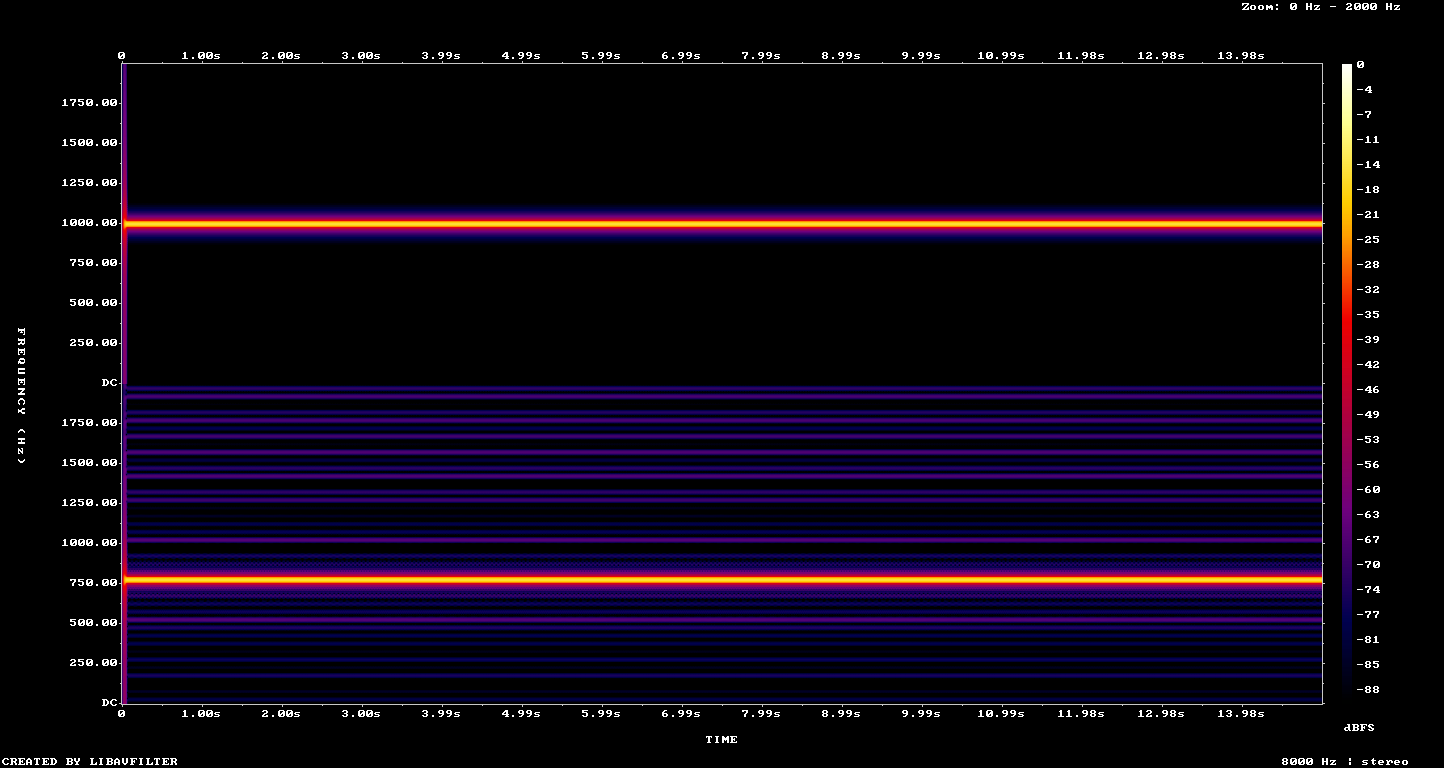
Capture details
This plot orders the RIGHT/customer channel above the LEFT/agent channel. The source tones identify the roles; the metrics do not measure human listening quality or general noise isolation.You should seeThe actual WAV passed the left-agent/right-customer test. Recording end-metadata completion remains a separate unresolved observation.
Download the dated practical test results and limits
When the recording is missing or wrong
Work from the selected call outward. Keep settings, recording metadata and the resulting file together so the next check answers a specific question.
Restore the test, then add complexity deliberately
Restore the recorded campaign, system and any in-group values after the approved test. Log out and disable only the temporary access created for this experiment. Keep the synthetic recording and its metadata according to the test’s agreed retention plan; do not remove unrelated files or shared recording directories.
After the basic two-sided recording passes, test one additional case at a time: inbound routing, park/transfer, parallel outputs or DTMF muting. Parallel processing needs a full temporary recording, so a customer-muted final file does not mean customer audio was never stored. DTMF-triggered muting also needs its own timing test; an enabled checkbox is not proof of removed sensitive audio.
Read the official stereo-recording reference
Check the ConfBridge foundation
- Previous values restored and reopened for confirmation
- Synthetic Agent session ended
- Temporary access handled as approved
- Recording ID/file/hash and channel result retained
- Optional features remain separate acceptance cases
Checks and sources
What was checked
- November 7, 2026: one proper answered internal call generated the actual 18.98-second WAV. Independent channel analysis verified the two known source tones and the unchanged file hash.
- Customer-only, customer-muted, parallel recording and DTMF muting were not tested. The captured end-metadata discrepancy was not repaired.
Primary references
Sources
- VICIdial stereo call recordingsVICIdial · accessed November 7, 2026
- ConfBridge documentationVICIdial · accessed November 7, 2026