Start here: the page has a clock, and the phone has a connection
The timed measurements in this guide come from an isolated browser lab. The live VICIdial Agent Screen Timer setting was inspected and left unchanged; a Worker control is not a completed test of a changed Agent-session setting.
The Agent page repeatedly checks for updates. Your browser may slow those checks when you switch to another tab or minimise the window. The phone connection is a separate part of the system. A page that stops updating and a phone with missing sound need different investigations.
A useful first clue is a repeatable pattern: the page behaves normally while visible, then becomes stale or pauses after you hide it, and catches up when you return. Write down what changed instead of immediately raising the dial level or restarting Asterisk. If the same failure happens while the Agent page stays visible, keep investigating the wider session or network problem.
You should seeA symptom you can repeat is more useful than a guess that every pause is Chrome’s fault.
Know which browser behaviour you are checking
Timer throttling means the browser runs a page’s scheduled work less often. Memory Saver can deactivate a tab, which then reloads when opened. Energy Saver can reduce background work on supported battery-powered computers. These can look similar to an agent, but a setting for one behaviour does not prove the others are fixed.
Google’s timer explanation describes conditions involving visibility, audio and active WebRTC connections. The timing depends on the browser and its current policy. Do not promise that every computer pauses after exactly ten seconds or exactly five minutes. Record the version and the delay you actually see.
Sources for this section
- Chrome’s explanation of hidden-page timersGoogle Chrome Developers · Checked November 7, 2026
Make a small before-and-after worksheet
Use the same workstation, browser, network and synthetic account for both runs. Close duplicate Agent tabs so you know which session you are observing. Do not refresh in the middle of a measurement: that starts a different browser session.
- Write down the browser name/version, test user, campaign, local time and current Agent Screen Timer value.
- Keep the Agent page visible for one minute. Note its timer, status and any failed network requests.
- Switch to another tab for at least six minutes. Leave a separate clock visible; do not make a customer call.
- Return once. Record how long the page was hidden, whether it reloaded, whether the Agent status changed, and how quickly updates resumed.
- Repeat the same sequence after one approved change. A shorter second test is not a fair comparison.
You should seeKeep both results, including a failed test. One responsive moment after returning to the tab is not proof of reliable hidden-tab updates.
Check the browser’s current site exception
On desktop Chrome, open Settings, then Performance. Under Always keep these sites active, add the exact Agent site you use. Use the current-sites picker if you are unsure of the address. A managed work computer may require your IT administrator to change this policy.
This is a Memory Saver exclusion. It is useful when a tab is being deactivated, but it is not evidence that JavaScript timers will always run at one-second intervals. Record whether Energy Saver was active too, especially on a laptop. Keep the comparison conditions consistent.
The old Chrome 88/90 flag and registry instructions in the VICIdial reference describe older releases. Do not spend a shift searching for a flag your browser no longer offers. Follow current browser settings and the options actually present in your VICIdial build.
- Open the Agent site in Chrome.
- Open Settings → Performance → Always keep these sites active → Add.
- Add that site, confirm the entry, and repeat the same hidden-tab test.
Sources for this section
- Current Chrome performance and site-exception settingsGoogle Chrome Help · Checked November 7, 2026
Ask your administrator to test one timer method
Open Admin → System Settings and find Agent Screen Timer. Copy its current value before saving anything. Test on a separate demo or in an approved maintenance window: a system-wide setting is not a private preference for one agent.
An option appearing in a menu proves availability, not reliability on your agents’ computers. After a change, start a fresh approved test session and repeat the worksheet. Keep the phone and call-alert checks in the acceptance test too.
Understand the sound and WebRTC alternatives
The vendor also offers Agent Hidden Browser Sound and documents an active WebRTC phone as another approach. Opening a phone widget is not the same as having the required active connection. Muted, blocked or never-started audio is not a verified working sound method either.
If your administrator chooses hidden sound, record the exact sound, volume and interval, then check autoplay permissions and the agent’s normal call alerts. Avoid combining several workarounds at once: otherwise you will not know which one helped, or which one caused a new audio problem. Use the vendor document for the sound-specific values supported by your build.
What we checked in this lab
The pinned demo’s current setting is setTimeout. Its actual Admin and Agent-page source contain EventSource, setTimeoutAudioLoop and setWTTimeout. The inspected source working copy reports SVN revision 4037. These are availability checks; no system timer value was changed for this inspection.
In a separate Chromium 156 headless experiment, the page was initially visible for 18.215 seconds. After 367.270 seconds hidden, the normal one-second timer had 35 hidden callbacks, including four gaps of at least 30 seconds and a longest gap of 60 seconds. The Worker delivered 367 callbacks, with gaps of 1,000–1,001 milliseconds. After returning to the first tab, the normal timer again produced one-second gaps.
Agent Browser opened the second tab with a real click; the original page reported hidden. The manually launched browser had no timer-throttling-disabling flags. This demonstrates the isolated timers on that build, not a live VICIdial Agent pause or an accepted production workaround.
Actual isolated browser timing observation
Open to enlarge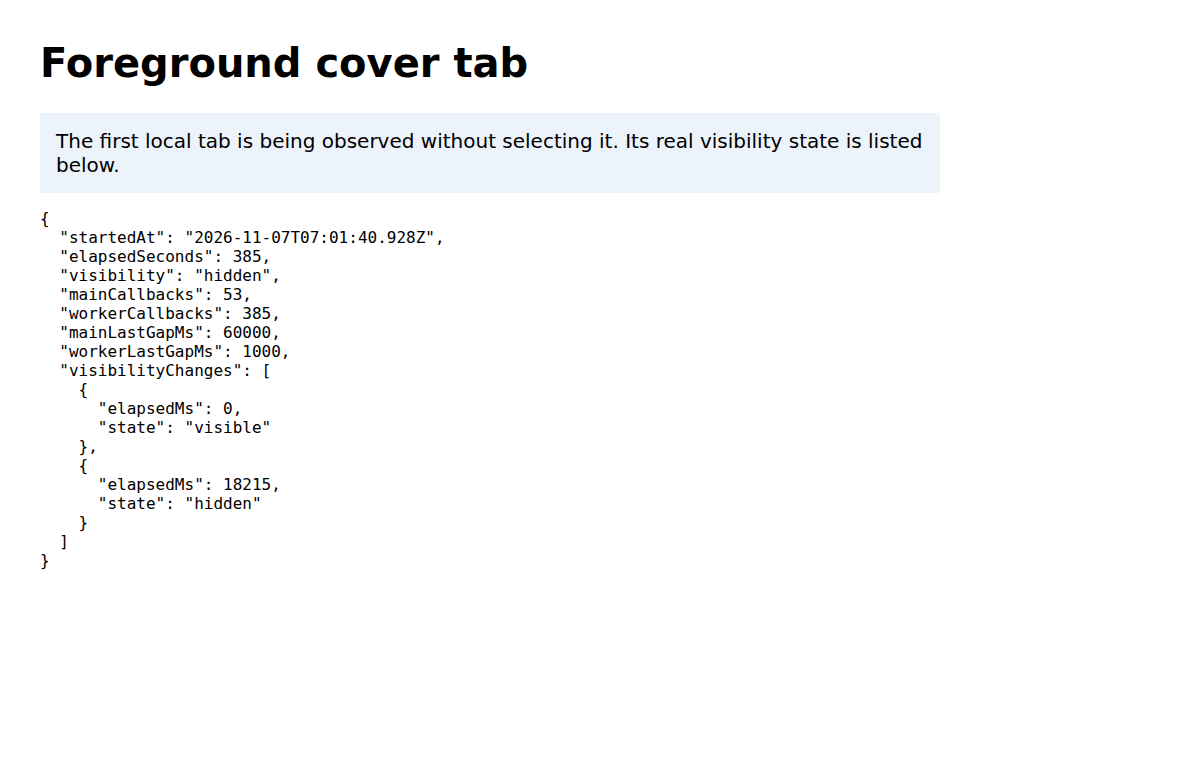
Capture details
The foreground cover tab reads the original tab’s recorded visibility and counters without selecting it. This is a custom test page, not a VICIdial Agent screen or proof of a saved timer-method fix.Native Agent Screen Timer before the test
Open to enlarge
Capture details
The available options were separately read from this same native select element; the image shows its selected value, not an expanded menu. No setting was saved.Download the complete browser timing observations and limits
If the first change does not help
Keep the symptom and the change together in your notes. Restore a change that introduces a new problem before trying the next method.
Decide whether to keep the change, then clean up
Accept a change only after the same hidden duration passes, the session remains in the expected state, the page recovers correctly, and the normal phone/alert workflow still works. A browser update, a different proxy or a weaker laptop can change the result, so retain the tested browser version and date.
To roll back, restore the exact previous Agent Screen Timer and any sound fields you changed. Start a new test session and repeat the visible baseline. Remove only the browser exception you added if it was not useful. Log out the synthetic Agent session and keep the measurements, including failures.
Read the official browser-throttling reference
- Same before/after workstation and hidden duration
- No unexpected pause or tab reload
- Expected Agent updates and status
- Phone audio and browser alerts checked separately
- Previous values and rollback result retained
Checks and sources
What was checked
- No before-and-after live VICIdial Agent-session test of a changed timer method is claimed; the separate browser experiment and demo availability checks have narrower scope.
Primary references
Sources
- Web browser JavaScript throttlingVICIdial · accessed November 7, 2026
- Heavy throttling of chained JavaScript timersGoogle Chrome Developers · accessed November 7, 2026
- Personalize Chrome performanceGoogle Chrome Help · accessed November 7, 2026