01 / 04
1. Create the station
- In Admin → Phones choose Add A New Phone. For the companion lab enter 8001 in Phone Extension, Dial Plan Number and Agent Screen Login, after verifying that 8001 is unused.
- Set Server IP to the assigned dialer, select PJSIP as Client Protocol if that stack is enabled, and enter separate strong values for Agent Screen Login Password and Registration Password.
- Use the site's approved phone template and WebRTC/VICIphone settings for this build, then submit. Record the station ID and server without recording passwords in the ticket.
- Client Protocol
- PJSIPOnly when supported and enabled on this installation; the screenshot shows the blank form's SIP default.
- Server IP
- Assigned dialer address
- Agent Screen Login / Login Password
- The station login pair
- Registration Password
- A separate device registration secret
Add a phone station
Open to enlarge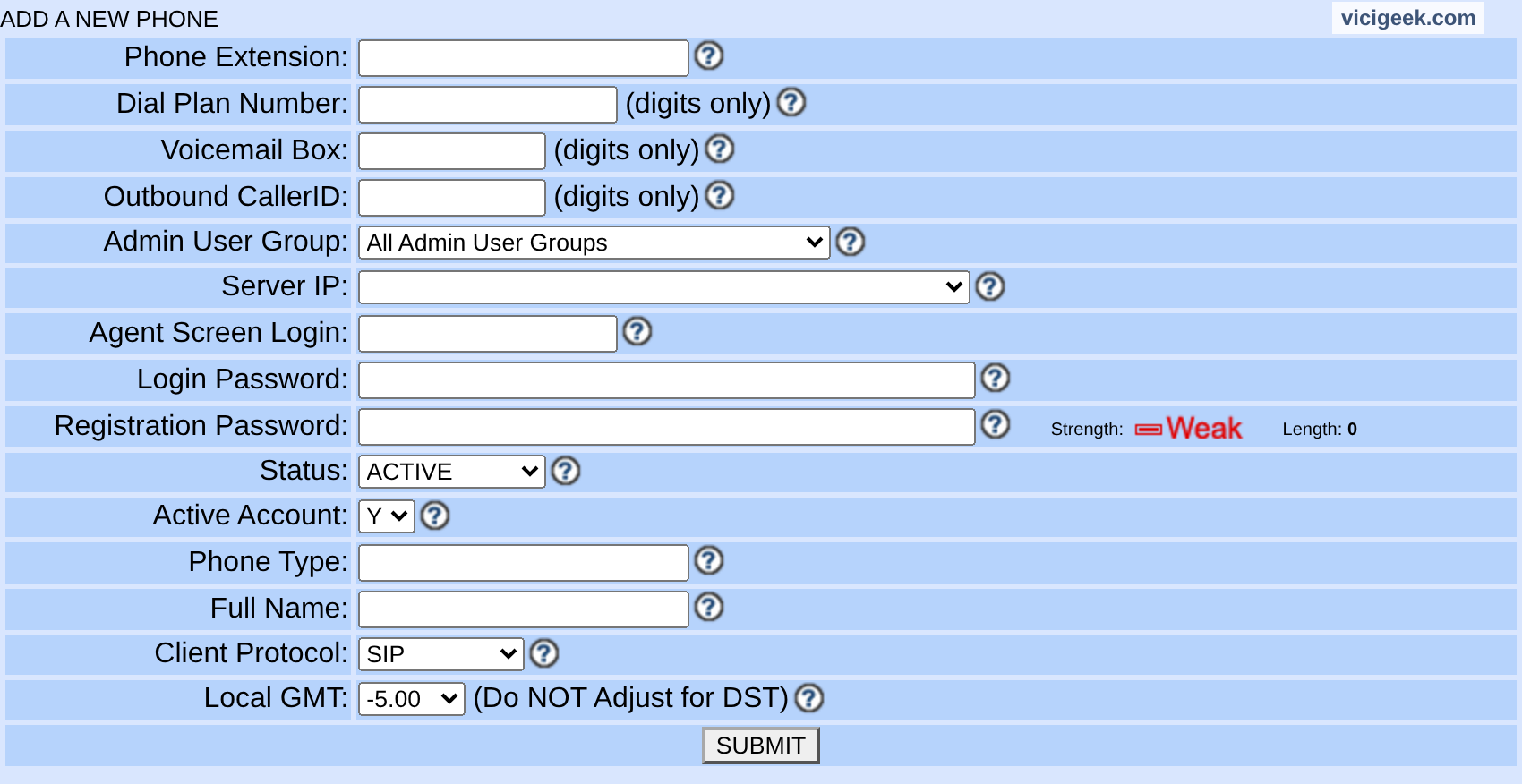
Capture details
Sensitive inputs were cleared and sensitive selections cleared or set to an existing generic option in browser state only; no form was submitted. ViciGeek attribution appears at the top.You should seeThe saved phone record supplies a station; its creation does not register a device.
02 / 04
2. Connect the assigned device
- For a softphone, configure the assigned registration user, secret, server, port and transport from the administrator; use the configured port rather than assuming 5060.
- For the browser phone, open the organization's HTTPS Agent address and accept microphone access for the correct device. Use a trusted certificate and the site's provisioned secure WebSocket endpoint.
- Enter the station login first, then the agent user and campaign. Do not reuse the registration secret as the Agent Screen Login Password unless the administrator explicitly provisioned that configuration.
Agent phone login and password form.
Open to enlarge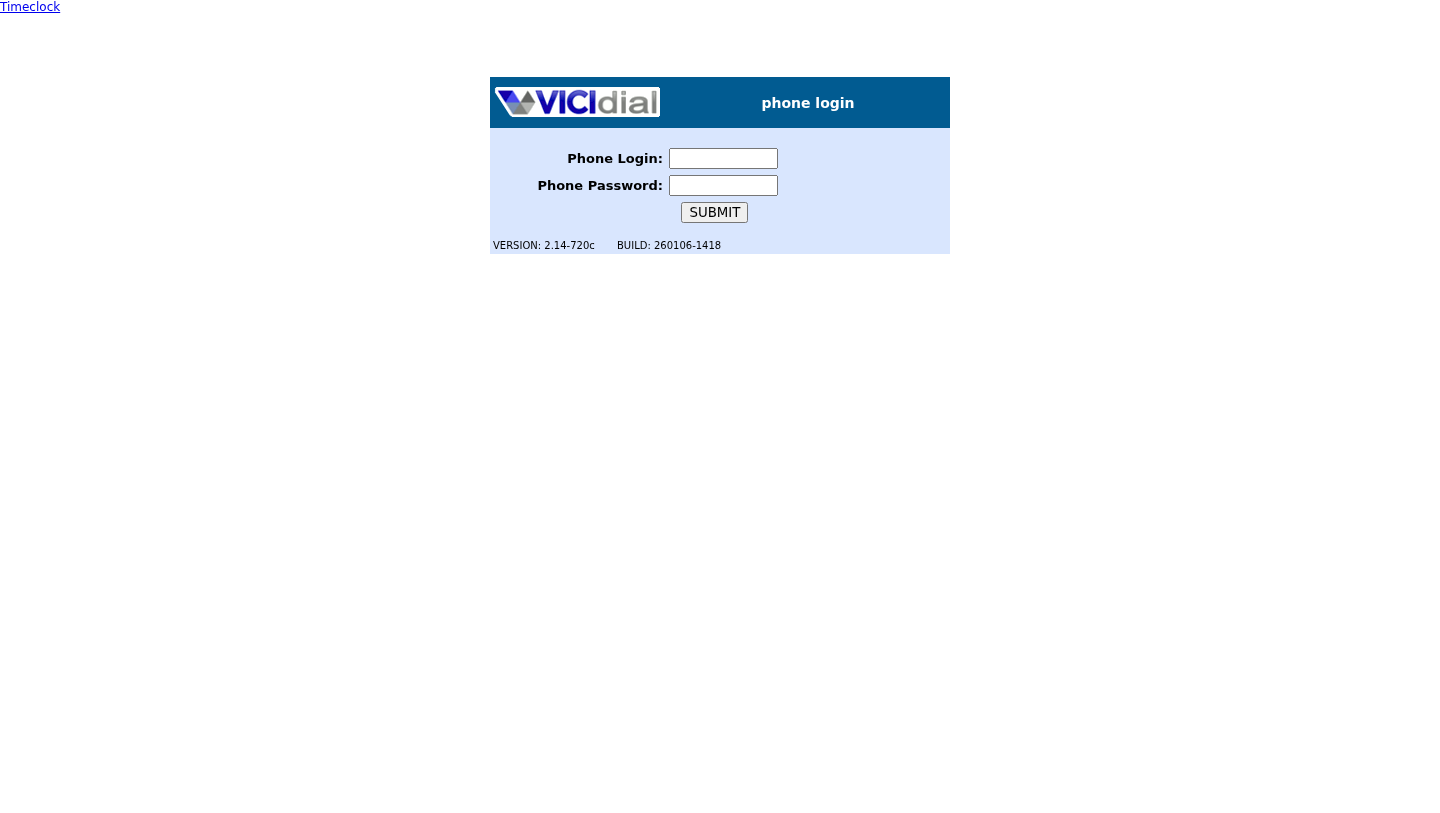
You should seeThe Agent workspace and phone connection are separate checks. If the browser blocks the microphone or certificate, resolve that with the administrator before testing audio.
03 / 04
3. Verify the PJSIP object
- On the assigned server, run `pjsip show endpoints` and locate the station ID.
- Run `pjsip show endpoint <ID>` and `pjsip show aor <AOR>` with the observed names. For a registering phone, look for its current contact.
- If the endpoint is missing, inspect configuration load errors and the phone record; if it has no contact, check device credentials, server, port and network access.
You should seeA loaded endpoint and contact support registration diagnosis; neither confirms two-way audio.
asterisk -rx 'pjsip show endpoints'This sample changes a system, contacts an outside service, needs a live call, or would print real data from a shared server, so it was not run on the demo. Run it only where you are authorized, and compare the result with the success and stop guidance.
- Before you run it
- Run on the relevant Asterisk server with authorized CLI access; output may contain operational identifiers.
- Success looks like
- The assigned endpoint appears in the list.
- Stop if
- If absent, check the phone's server and generated configuration with its administrator.
04 / 04
4. Test audio and recover
- Call the approved internal test destination or a consenting test participant once.
- Confirm that each participant hears the other and that the call can end normally.
- If one direction is silent, check the selected browser devices, negotiated codec and media path for both legs; document the result and escalate. Restore any changed station values if the test causes a regression.
You should seeOnly the actual test establishes audio for that path and moment; no registration or call was observed for this guide.
Checks and sources
What was checked
- Instructions are based on the linked project documentation and sanitized interface captures. The captures do not prove registration, a completed call, a transfer, callback or audio quality.
- The lab runs VICIdial SVN 4037, database schema 1748 and Asterisk 18.26.4-vici. Labels, enabled features and provider requirements can differ on another installation.
Primary references
Sources
- VICIdial PJSIP supportVICIdial Group · accessed November 4, 2026
- Asterisk PJSIP troubleshootingAsterisk · accessed November 4, 2026
- Configuring Asterisk for WebRTC clientsAsterisk · accessed November 4, 2026