Reader setup
Before you start
Run each step in order and move only when the outcome is confirmed.
- Have the agent user login/password and the phone login/password you already created in the earlier setup articles within reach.
- Have the campaign and at least one loaded lead ready from the previous two articles in this path, the read-only database account from Create a read-only database account for safe VICIdial queries, and know which browser you will use to grant microphone access.
- Do this on a synthetic or lab system, or on a production system with an internal test extension built specifically for this purpose, never against a live customer campaign.
- What you will prove
- You will log in as an agent, get real audio flowing in both directions, place one manual call to a safe internal test destination, save a disposition, then pause and log out cleanly, the same sequence you will repeat for every real call afterward.
- Safety boundary
- Every database example here is read-only, and the only call this guide places targets an internal test destination that never reaches the phone network. Do not point your first manual call at a real phone number, and do not change campaign or dial-level settings while troubleshooting; isolate the failing layer first.
Reader path
How to use this article
- Use it when: You need a fixed sequence to make a deployment or configuration change now.
- Expected result: Follow each step and verify the outcome before changing the next layer.
- Start here: Start at the first section and complete every checkpoint before moving to the next.
01 / 09
What you are looking at when you open the Agent screen
Fast answer: log in to the Agent screen with the phone login and agent user you already created, pick the campaign you built earlier, allow microphone access when the browser asks, place one manual call to a safe internal test destination, hear it answer in both directions, save a disposition (the outcome code that ends the call) to end it, then pause yourself and log out cleanly.
Agent and campaign are defined in the beginner terminology guide.
The Agent screen's login is two separate steps, not one combined form: the first page of agc/vicidial.php asks only for your phone login and phone password, the identity your softphone or browser phone registers with. Only once that checks out does the second page ask for your agent user and password, your personal VICIdial identity and permission level, plus the campaign you want to join. VICIdial's login endpoint still takes all of them together on the back end, phone_login, phone_pass, VD_login, VD_pass and VD_campaign, and only opens a working session once every one of them checks out.
Everything else in this guide assumes the earlier articles in this path are already done: a reachable VICIdial login, an agent user and phone extension, a campaign, and at least one lead loaded into a list. A SIP carrier is optional and not one of them — Step 3 below builds a custom test route instead. Finish whichever of those is still missing before you continue here.
- Confirm your phone login/password works on the first login page before you even reach the second.
- Confirm the campaign you plan to join has at least one lead loaded.
- Pick a quiet moment; your very first call should not compete with a live production shift.
Visual walkthrough
Follow three real demo screens
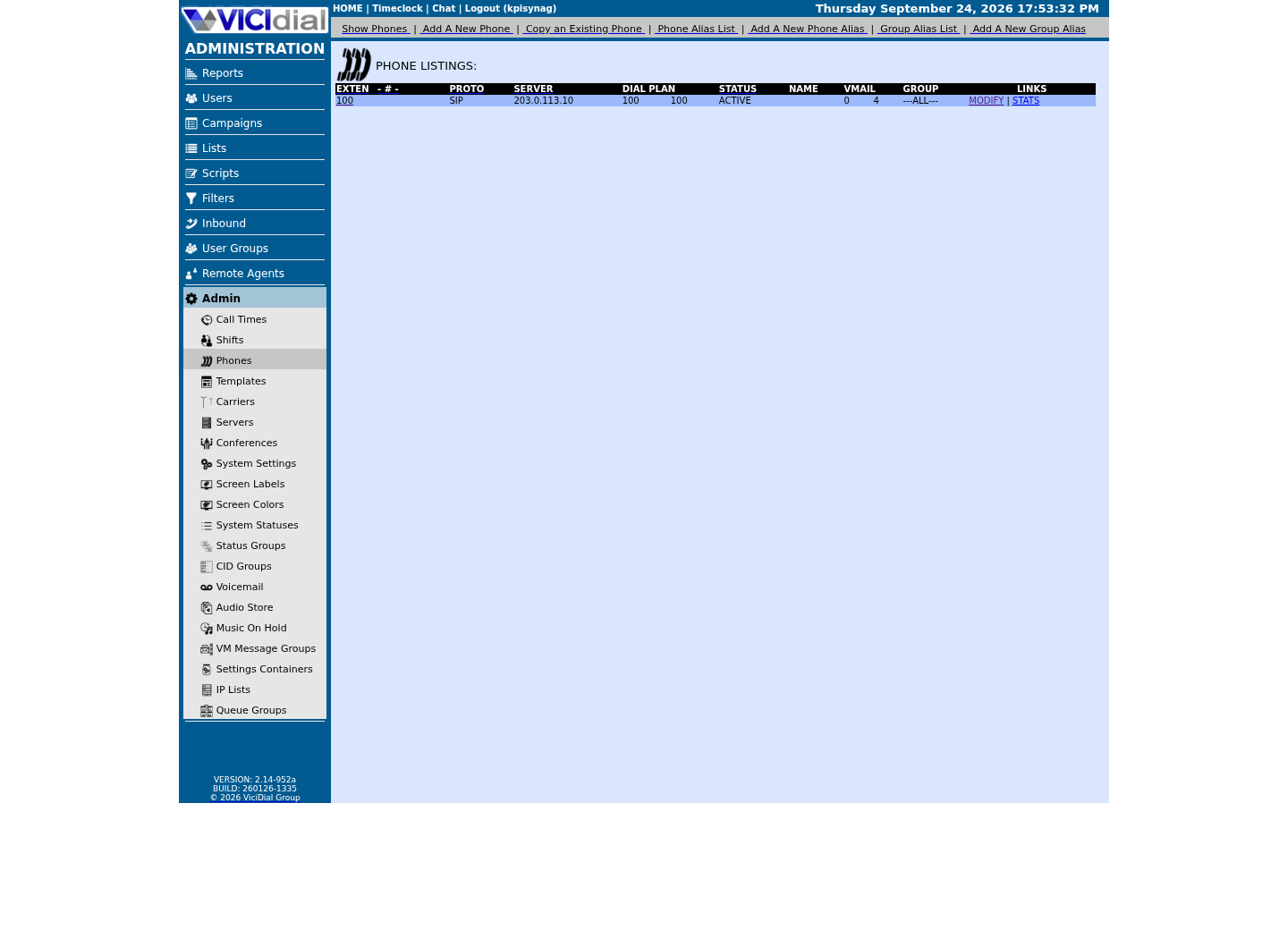
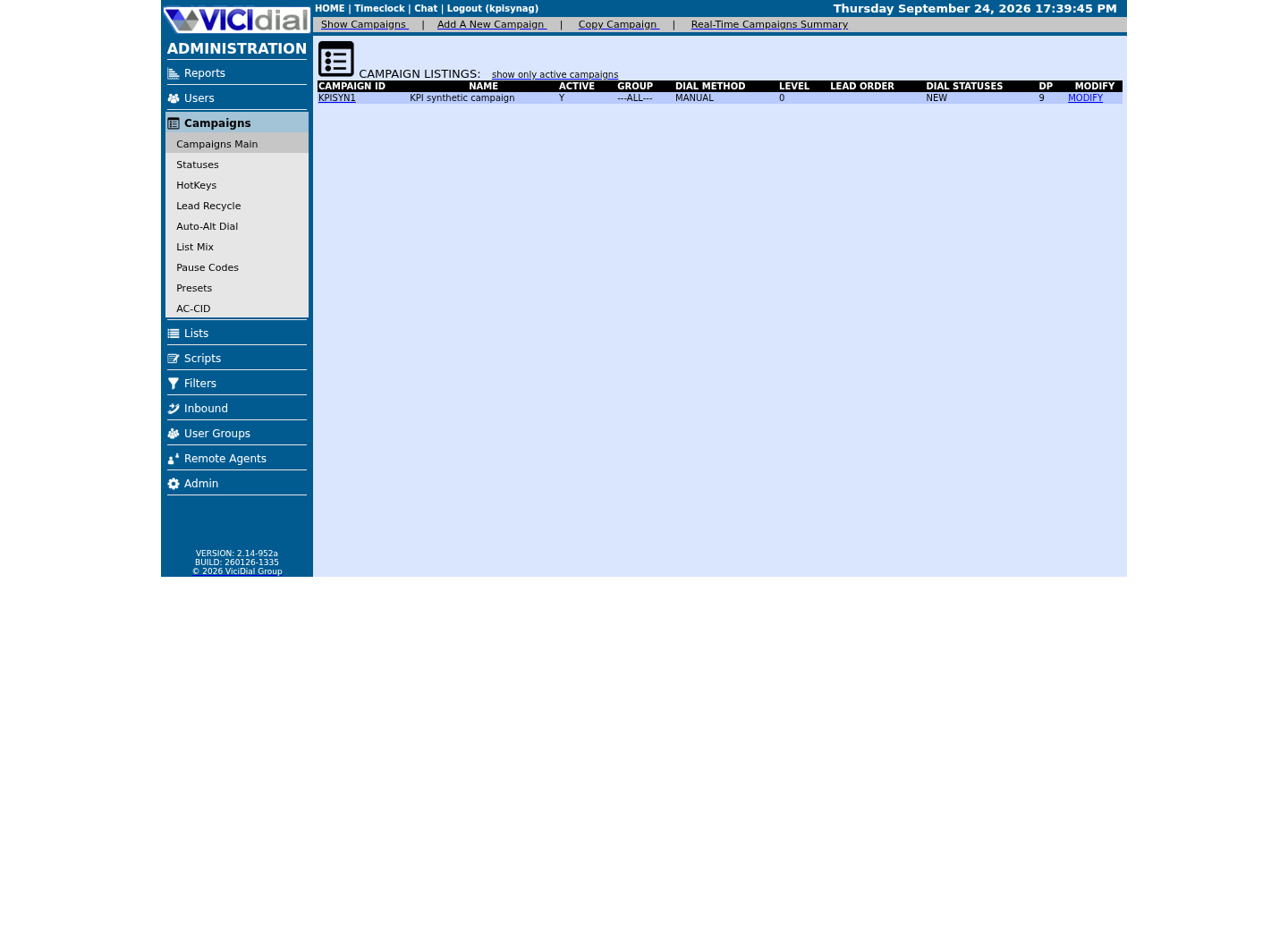
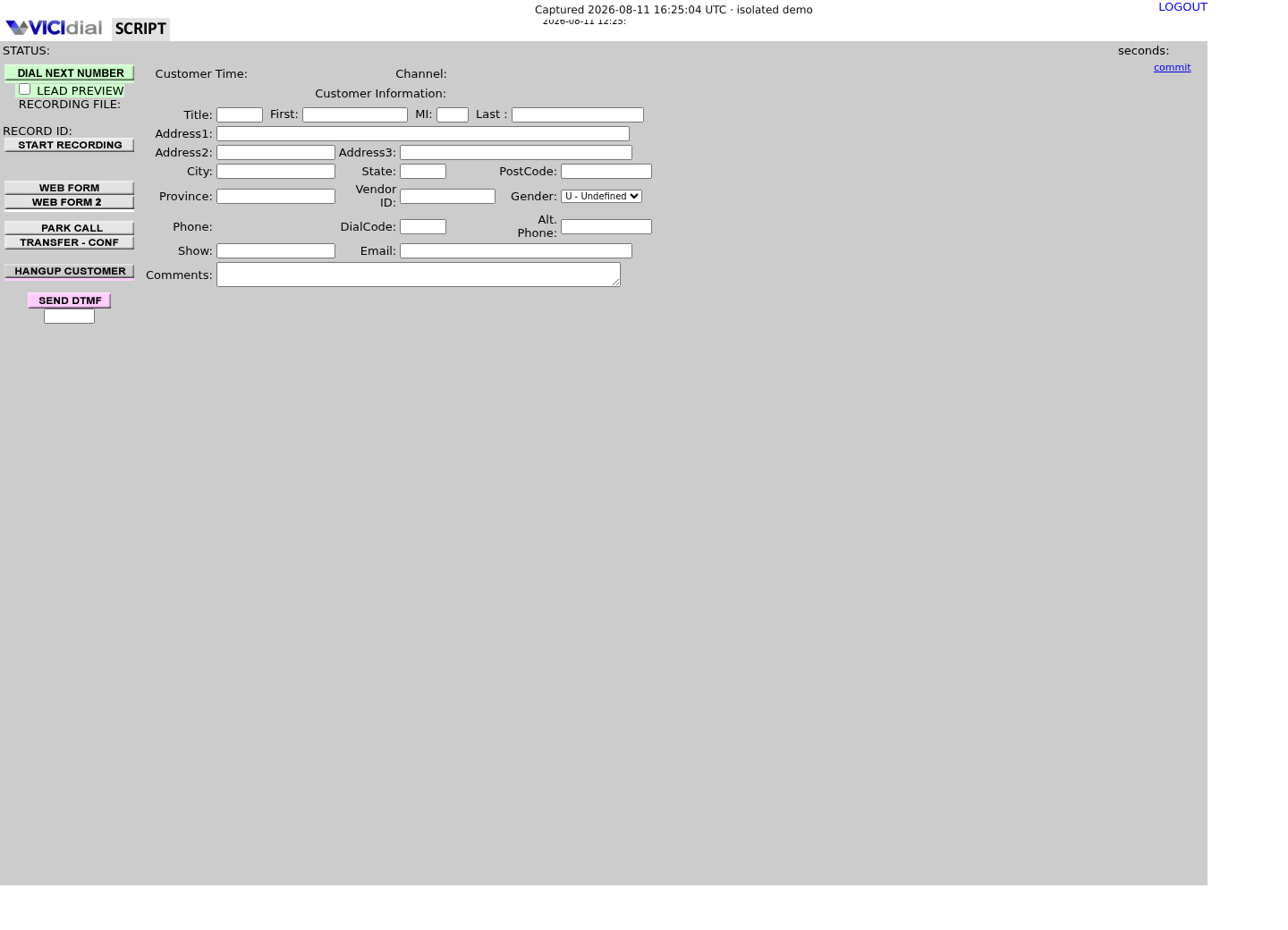
Captured on an isolated VICIdial demo: Administration screens on September 24, 2026, and the idle Agent screen on August 11, 2026. Each caption states its own capture time, and every sanitized image helps you recognize a related screen; none proves that this article's call, command, or result occurred.Keep phones and users separate
Find the campaign the agent should use
Read the real Agent screen in an idle state
02 / 09
Step 1 — Log in to the Agent screen and choose your campaign
Open the Agent screen and enter your phone login and phone password on the first page. Once that is accepted, a second page asks for your agent user, password, and the campaign you built earlier; submit that to finish logging in. Do this deliberately once; repeatedly retrying a failed login is what actually creates the orphaned sessions beginners later have to clean up.
A successful login does more than show you a screen: it books your session in VICIdial's own session tables, reserves you an audio conference — ConfBridge on our ViciBox 12 lab, though this is a per-server setting you can confirm yourself if you ever need to troubleshoot it — and writes a row for you in vicidial_live_agents labeled PAUSED. Other states you will see over time are labeled READY, waiting for a call, and INCALL, on one; PAUSED right after login is correct and healthy, connected and known to the dialer, but not yet on a call.
If the screen never finishes loading, or loads but nothing in the database ever shows you as PAUSED, stop here rather than moving on to audio or dialing. A login that has not actually reached PAUSED cannot be fixed by getting your microphone working.
- Confirm the campaign's Active flag is already Y (set at the end of the campaign article, two articles back) — an inactive campaign cannot be chosen on this screen at all.
- Submit phone login, agent user, and campaign together in one attempt.
- Confirm status reaches PAUSED before you touch audio or dialing.
- Treat a login that never reaches PAUSED as its own separate problem.
SELECT status, extension, conf_extenFROM vicidial_live_agentsWHERE user = '<AGENT_USER>';This sample changes a system, contacts an outside service, needs a live call, or would print real data from a shared server, so it was not run on the demo. Run it only where you are authorized, and compare the result with the success and stop guidance.
- Before you run it
- This needs a live agent session, which this article does not create on the lab; run it yourself from a read-only database session right after you submit the Agent login form, before you touch anything about audio or dialing. Replace <AGENT_USER> with your own agent login.
- Success looks like
- Exactly one row comes back, status reads PAUSED, and extension and conf_exten both show a value, proof the browser, your phone's identity, and VICIdial's own live-agent table all agree before you go any further.
- Stop if
- Stop if no row appears, more than one row appears, or status is anything other than PAUSED. Log out fully and log back in once rather than layering a second login attempt on top of the first.
03 / 09
Step 2 — Get audio working before you place a call
VICIdial gives you two ways to actually carry your voice: the browser phone built into the Agent screen, which uses WebRTC, Web Real-Time Communication, the browser technology that carries live audio and video without installing anything extra, to register and take calls right inside the page; or a separate softphone application that registers as its own SIP, Session Initiation Protocol, the standard signaling protocol phones use to set up and tear down calls, extension. Either way, your phone still has to land in the same conference the Agent screen already reserved for you in Step 1.
The single most common reason a fresh agent logs in cleanly but hears nothing is a blocked microphone. The browser asks for microphone permission once per site; clicking Deny, or having denied it previously, leaves your agent state, your campaign, and the call itself looking completely normal while no outbound audio ever leaves your machine. Grant microphone access before you place your first call, not after something already looks broken.
The browser phone's audio and signaling travel over a secure WebSocket straight to Asterisk's own listener — servers.web_socket_url points at wss://<VICIDIAL_HOST>:8089/ws, and on our ViciBox 12 lab that listener binds to every address on the box, not just loopback, with no reverse proxy in front of it. What actually decides whether a remote agent can reach it is the firewall: the firewalld asterisk service opens 8089/tcp (plus 5060/udp and 4569/udp) only for source addresses in the whitelist and dynamic-list ipsets, so an agent connecting from an address outside both gets no registration and no audio, with nothing on the Agent screen explaining why.
Some internal test routes go one step further and also expect a DTMF, Dual-Tone Multi-Frequency, the tones your phone sends when you press a key, code back from you, proving your keypad presses reach the far end too. You will not need that for a first call, but do not be surprised if a more thorough internal test asks you to press a few digits before it plays a result back.
- Grant microphone access the first time your browser asks, before your first call.
- Confirm your phone, browser or softphone, actually joins the reserved conference, not just that it shows connected.
- If a remote agent gets no audio, confirm their address is in the whitelist or dynamic list before suspecting 8089 itself.
asterisk -rx 'http show status'firewall-cmd --info-service=asteriskCaptured demo response · 2026-09-23 21:35 UTC. The displayed command is the command that ran; a safe subset label means it was filtered, redacted, or fixture-scoped. Replays only after you select Replay transcript.
- Before you run it
- Run both on the VICIdial server. Neither changes anything.
- Success looks like
- http show status confirms the WebSocket/HTTP listener is up; --info-service=asterisk lists the ports firewalld opens for it on this build (5060/udp, 4569/udp, 8089/tcp) — cross-check against whichever zone your host's interface actually uses.
- Stop if
- If an agent outside the office or an approved network cannot register, their address is very likely missing from the whitelist or dynamic list, not a fault in 8089 itself; that is an Admin → IP Lists / VB-firewall question, covered in the carrier article's firewall section.
04 / 09
Step 3 — Build your internal echo/test destination
Check first whether this build already ships a built-in echo or test extension, rather than guessing. On our ViciBox 12 lab it does not: the shipped dialplan has zero lines calling Echo() at all. The Playback() lines that do exist there answer a different, unrelated pattern (a _851XXXXX prompt lookup) and the 6851/7851 answering-machine-detection and message-drop patterns — none of them is a usable test destination, so do not dial into one expecting an echo test.
Build the smallest possible route yourself instead, using the Custom Dialplan Entry field VICIdial ships for exactly this: Admin → System Settings, for every server, or Admin → Servers, for one server only. A script that ships with VICIdial and runs from root's crontab once a minute writes that text into the vicidial-auto-system-setting-custom context, so a saved entry takes effect on its own within a minute or two, with nothing else to restart.
That custom context is included after the context carrier Dialplan Entries live in, so if a carrier pattern also happens to match the same digits, the carrier's route wins. Confirm what will actually answer with `asterisk -rx 'dialplan show <DIGITS>@default'` before ever placing the call — it lists every matching context in the order VICIdial searches them.
Whatever digits actually reach the dialplan depend on more than the phone number alone: VICIdial dials Manual Dial Prefix (or Dial Prefix, if Manual Dial Prefix is left empty) plus phone_code plus phone_number, unless Omit Phone Code is set to Y, in which case phone_code is left out. Any prefix containing the letter `x` is replaced with nothing before dialing. With the no-carrier setup from the campaign article — Dial Prefix `x`, Manual Dial Prefix empty, Omit Phone Code N — the test lead from the leads article, phone_number 900101 and phone_code 1, dials as the digit string `1900101`.
- Confirm your build also has no built-in Echo() before assuming one exists.
- Paste the custom route into Admin → System Settings (or Admin → Servers for one server), then wait for the next keepalive run.
- Confirm with dialplan show that no carrier context answers the same digits first.
asterisk -rx 'dialplan show' | grep -c 'Echo('Captured demo response · 2026-09-23 21:35 UTC. The displayed command is the command that ran; a safe subset label means it was filtered, redacted, or fixture-scoped. Replays only after you select Replay transcript.
- Before you run it
- Run this read-only on the VICIdial server; it only counts a pattern in the loaded dialplan and changes nothing.
- Success looks like
- A count of 0 means there is no built-in Echo() destination on this build, matching our ViciBox 12 lab, and the worksheet below is your path. A nonzero count names at least one existing echo extension — inspect it with `asterisk -rx 'dialplan show'` before assuming it is safe to dial.
- Stop if
- The command itself has no failure mode beyond a typo; if it errors, confirm you are running it as a user with Asterisk CLI access.
05 / 09
Worksheet — the literal Custom Dialplan Entry for lead 900101
This is the literal route for the test lead the leads article loaded, ready to paste into the Custom Dialplan Entry field under Admin → System Settings (all servers) or Admin → Servers (one server). It is not run on the demo as part of this article — you paste it yourself, once, on your own lab.
Line 1 keeps VICIdial's own call-logging hook, the same AGI callback the carrier dialplan worksheet uses, so this test call still shows up in your reports like a real one would.
exten => 1900101,1,AGI(agi://127.0.0.1:4577/call_log)exten => 1900101,n,Answer()exten => 1900101,n,Echo()exten => 1900101,n,Hangup()This sample is a template or reading aid, not a terminal command. There is no output to show.
- Before you run it
- Paste this exactly into the Custom Dialplan Entry field, then save. Nothing happens until the keepalive script writes it in, roughly a minute later.
- Success looks like
- `asterisk -rx 'dialplan show 1900101@default'` lists these four lines under context vicidial-auto-system-setting-custom, with no carrier context listed ahead of it for the same digits.
- Stop if
- If dialplan show finds nothing yet, wait for the next keepalive run before assuming the paste failed. If a carrier context does appear first for 1900101, do not place the test call — VICIdial will dial the carrier's route instead of this one.
06 / 09
Step 4 — Place the call, then disposition and log out
A manual call on a MANUAL campaign means clicking DIAL NEXT NUMBER, which pulls the next eligible lead out of the campaign's hopper for you, rather than you looking one up yourself. A separate background job, AST_VDhopper.pl, refills that hopper from the campaign's list roughly every two minutes, so a lead you only just loaded is not always there the instant you look.
Never point your first manual call at a real phone number. A stray test call can ring a real person, and many carriers bill a call the moment it connects, whether or not anyone wanted it. Point this first lead at the internal test destination you built in Step 3 instead — lead 900101, phone_code 1, which answers, echoes your own voice back to you, and hangs up.
Whatever digits VICIdial actually dials, for a manual call the same as an automatic one, are Manual Dial Prefix (or Dial Prefix, if Manual Dial Prefix is empty) plus phone_code plus phone_number, unless Omit Phone Code is Y. With the no-carrier setup from the campaign article, that gives phone_code `1` plus phone_number `900101`: the digit string `1900101` your Step 3 dialplan entry is keyed on. You do not have to type any of this yourself; VICIdial builds it from your campaign and lead settings the moment you click.
Once the test destination answers, you should hear your own voice echoed back a moment later, and it should be able to hear you. That two-way echo is a genuinely useful check: if you can hear yourself, your microphone, your phone's outbound leg, the conference, and the return leg are all proven working at once, with nobody else on the line.
When you are done, save a disposition, the outcome code that tells VICIdial, and every report built from it, what actually happened. Saving a disposition is what closes the call in VICIdial's own tables and returns you to paused; simply hanging up your phone without one leaves both the lead and your own session in a half-finished state. Confirm it landed with a read-only `SELECT status, called_count FROM vicidial_list WHERE lead_id = '<LEAD_ID>';` — status should read your disposition code instead of NEW, and called_count should be one higher than before the call. Only after that should you pause yourself and use the logout control, so your live session is removed in one clean pass instead of lingering as an orphaned row an administrator has to clear later.
- Confirm the destination is lead 900101 / digit string 1900101, never a real phone number, before you click DIAL NEXT NUMBER.
- Hear audio in both directions before you consider the call proven.
- Save a disposition before you pause; pause before you log out.
SELECT lead_id, status FROM vicidial_hopper WHERE campaign_id = '<CAMPAIGN_ID>';Captured demo response · 2026-09-23 21:35 UTC. The displayed command is the command that ran; a safe subset label means it was filtered, redacted, or fixture-scoped. Replays only after you select Replay transcript.
- Before you run it
- Run this with the read-only database account right before you click DIAL NEXT NUMBER. Replace <CAMPAIGN_ID> with your own campaign.
- Success looks like
- Your test lead's row shows status READY. If the hopper has nothing for this campaign, DIAL NEXT NUMBER will have nothing to dial.
- Stop if
- An empty result usually means one of: the campaign or list is not active, the lead's own status is not NEW, the current time is outside the list's Local Call Time window, or AST_VDhopper.pl (it runs every two minutes) has not refreshed the hopper yet since you loaded the lead. Wait and recheck before assuming something is broken.
07 / 09
Troubleshoot audio problems one layer at a time
Two of the three classic beginner failures are audio problems wearing different disguises: the agent logs in but there is no audio at all, and the call connects but only one direction can be heard. Both live in the same two layers, phone registration and the audio path itself, not in the campaign or dial settings, so resist the urge to change those first.
No audio at all usually means your phone, browser or softphone, never actually joined the conference the Agent screen reserved for you in Step 1, or your microphone permission was never granted. Check registration before you check the campaign: an agent can show PAUSED in the live-agent table while their phone leg never joined anything.
One direction silent almost always means signaling succeeded but media did not, in only one direction. If you cannot be heard, suspect a denied or revoked microphone permission first. If you cannot hear the other side, suspect a blocked or mismatched media port path between your network and the server, especially over a residential or corporate connection with its own firewall. Either way, this is still a Step 2 problem, not a dialer problem.
Isolate strictly in this order: confirm the browser session and live-agent row first, then confirm the phone actually registered and joined the conference, then check the actual behavior of the audio path itself. Only move on to dialer state, in the next section, once all three of those check out.
SELECT server_ip, conf_engine FROM servers WHERE active_asterisk_server = 'Y';Captured demo response · 2026-09-23 21:35 UTC. The displayed command is the command that ran; a safe subset label means it was filtered, redacted, or fixture-scoped. Replays only after you select Replay transcript.
- Before you run it
- Run this with the read-only database account any time; it only reads the servers table and changes nothing.
- Success looks like
- conf_engine reads CONFBRIDGE or MEETME for the server your agent session is on — on our ViciBox 12 lab it reads CONFBRIDGE. Use that answer to run the matching check while the affected agent is still logged in and paused: `asterisk -rx 'confbridge list <CONF_EXTEN>'` for CONFBRIDGE, or `asterisk -rx 'meetme list <CONF_EXTEN>'` for MEETME, with <CONF_EXTEN> the conf_exten value from the Step 1 query.
- Stop if
- If the matching list command shows no party for this agent, that is registration or audio-path evidence, and campaign or dial-level changes will not fix it.
08 / 09
Troubleshoot the third failure: live but nothing dials
The third classic beginner failure is different in kind: the agent looks completely healthy, logged in, paused, phone registered, audio working, and yet clicking the manual-dial control does nothing. This is a dialer-state problem, and it deserves its own layer instead of being folded into an audio complaint.
For a manual call specifically, the most common cause is simple: DIAL NEXT NUMBER pulls from the campaign's hopper, and the hopper is refreshed from the list by a background job that runs roughly every two minutes, not instantly when a lead is loaded. If nothing is there yet, wait for the next refresh rather than assuming the button is broken. The next most common cause is that the campaign or list itself is not active, or the one lead you are trying to reach has already been picked up by another session.
Automatic dialing on RATIO or an ADAPT method also pulls from this same hopper, but paces how many calls it places per available agent instead of dialing exactly one per click; that pacing and dial-level behavior is the subject of the final article in this path.
- Confirm a lead is actually loaded before assuming the dialer is broken.
- Confirm the campaign and list are both active.
- Confirm the lead is not already checked out by another session.
SELECT active FROM vicidial_campaigns WHERE campaign_id = '<CAMPAIGN_ID>';SELECT active FROM vicidial_lists WHERE list_id = '<LIST_ID>';SELECT status, user FROM vicidial_list WHERE lead_id = '<LEAD_ID>';Captured demo response · 2026-09-23 21:35 UTC. The displayed command is the command that ran; a safe subset label means it was filtered, redacted, or fixture-scoped. Replays only after you select Replay transcript.
- Before you run it
- Run through an approved read-only database session, replacing the three placeholders with your own test campaign, list, and lead.
- Success looks like
- Both active columns read Y, and the lead's status is not already INCALL under a different user, everything needed for a manual call is actually available.
- Stop if
- Stop if either active flag reads N or the lead is already checked out by another session; fix that specific record through VICIdial Admin rather than editing this table by hand.
09 / 09
What you just proved, and what comes next
You have now completed the full loop a real agent repeats all day: log in, get audio working, take one call, disposition it, then pause and log out. Everything you troubleshoot from here on is a variation of one of the layers in this guide: browser session, phone registration, audio path, or dialer state.
This guide deliberately used a manual call so you could control exactly which destination rang and prove every layer yourself. The next article in this path, VICIdial dialing modes and pacing, covers how the automatic dialer picks leads out of the hopper for you and paces outbound calls across a whole team of agents, the step that turns one working agent into a working campaign.
- Log in, confirm PAUSED, confirm audio, place one manual call, disposition it, pause, then log out, in that order, every time.
- When something breaks, name the layer before you touch a campaign setting.
Evidence ledger
Verification basis
- VICIdial's own Agent login endpoint requires phone_login, phone_pass, VD_login, VD_pass and VD_campaign together, documented in AGENT_API.txt; a session only counts as live once vicidial_live_agents shows a PAUSED row for it. On our ViciBox 12 lab, the Agent screen itself presents this as two separate pages: phone login/password first, then agent user/password and campaign.
- On our ViciBox 12 lab, `asterisk -rx 'dialplan show' | grep -c 'Echo('` returns 0 — there is no built-in echo/test extension to find, and the dialplan's existing Playback() lines (a _851XXXXX prompt pattern and the 6851/7851 AMD/message-drop patterns) are not test destinations. A Custom Dialplan Entry, written into the vicidial-auto-system-setting-custom context by the keepalive script every minute, is the shipped mechanism this article uses instead.
- servers.web_socket_url on our ViciBox 12 lab is wss://<VICIDIAL_HOST>:8089/ws; ViciPhone registers straight to Asterisk's own listener, with no reverse proxy involved. The firewalld asterisk service, not a proxy, governs whether an outside address can reach it at all.
Primary references
Sources
- VICIdial Agent API (AGENT_API.txt)VICIdial · accessed August 5, 2026
- VICIdial statuses reference (VICIDIAL_statuses.txt)VICIdial · accessed August 5, 2026
- MediaDevices.getUserMedia()MDN Web Docs · accessed August 5, 2026