Reader setup
Before you start
Run each step in order and move only when the outcome is confirmed.
- A non-production or quiet test campaign with two test agents and one test supervisor account
- Admin access authorized to change VICIdial System Settings and User Group visibility
- A short internal-chat policy stating what agents may never put in a message
- What you will prove
- Two test agents and one supervisor can exchange one internal message, hear or mute the alert, and confirm the message appears in the authorized chat log.
- Safety boundary
- Do not use broadcasts during active calling, do not paste customer payment or identity data into chat, and do not expose the customer-chat URL publicly until access and retention are reviewed.
Reader path
How to use this article
- Use it when: You need a fixed sequence to make a deployment or configuration change now.
- Expected result: Follow each step and verify the outcome before changing the next layer.
- Start here: Start at the first section and complete every checkpoint before moving to the next.
01 / 05
Know which chat you are enabling
VICIdial’s bundled Chat Messaging documentation describes three distinct experiences: internal agent-to-agent chat, manager-to-agent chat, and customer web chat. Start with internal chat; it has the smallest public exposure and teaches the permission model before you add a website.
The agent screen shows CHAT INTERNAL and CHAT CUSTOMER when chat is enabled. The documentation says messages are logged and searchable through the Agent-Manager Chat Log. In plain language: a user group is a permission group; a broadcast sends one message to many logged-in agents; an alert is the visual or audio cue for an unread message.
The built-in interface signals state with color and motion rather than a separate notification system: an internal chat with unread messages makes the CHAT INTERNAL tab blink red, your own messages print in blue inside the conversation, and the other person's print in red. A right-hand panel labeled “Your active chats” lists everyone you are currently talking with, and any chat holding an unread message is shown bold and highlighted so it stands out from the rest.
Starting a new internal chat is a two-part form, not a free-form address book: click the green “CHAT WITH LIVE AGENT” button, choose a name from the list on the left, type the opening message on the right, then click “START CHAT”. The list on the left only offers agents who are currently logged in and who belong to a user group your own group is allowed to transfer to—both conditions have to be true, so an agent who is logged in but in an unrelated group still will not appear.
The chat window itself follows a fixed layout: the conversation appears where the customer's information panel normally sits, a text box beneath it accepts your reply, and pressing Enter sends the message just as clicking the blue “SEND MESSAGE” button does. If you have no open chats at all, the interface says so plainly instead of showing an empty conversation window—that message is the expected idle state, not a sign anything is broken.
- Start with one supervisor and two test agents.
- Use an internal test phrase with no personal or customer data.
- Identify who is allowed to search the chat log.
Visual walkthrough
Follow three real demo screens
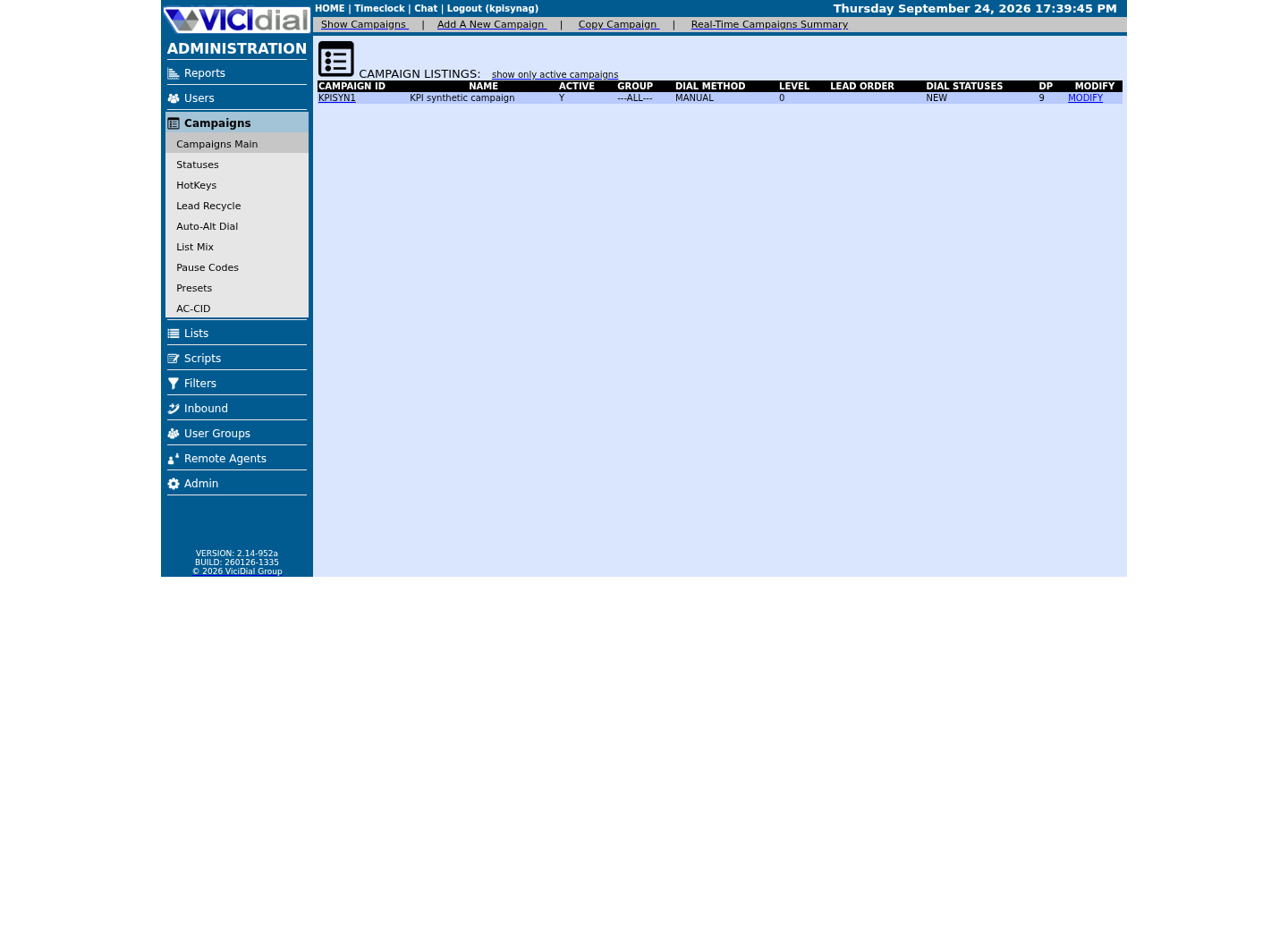
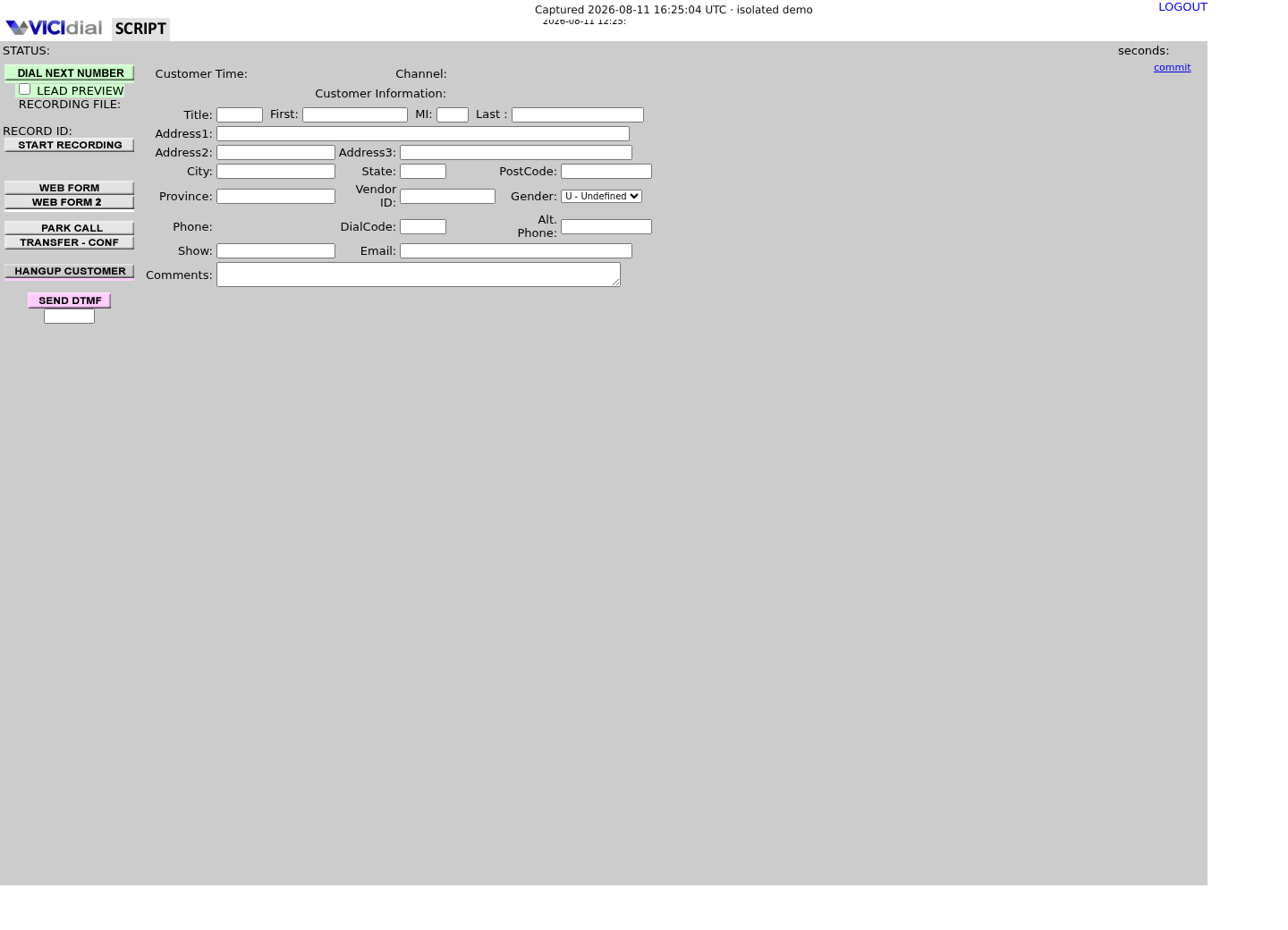
Captured on an isolated VICIdial demo: Administration screens on September 24, 2026, and the idle Agent screen on August 11, 2026. Each caption states its own capture time, and every sanitized image helps you recognize a related screen; none proves that this article's call, command, or result occurred.Keep phones and users separate
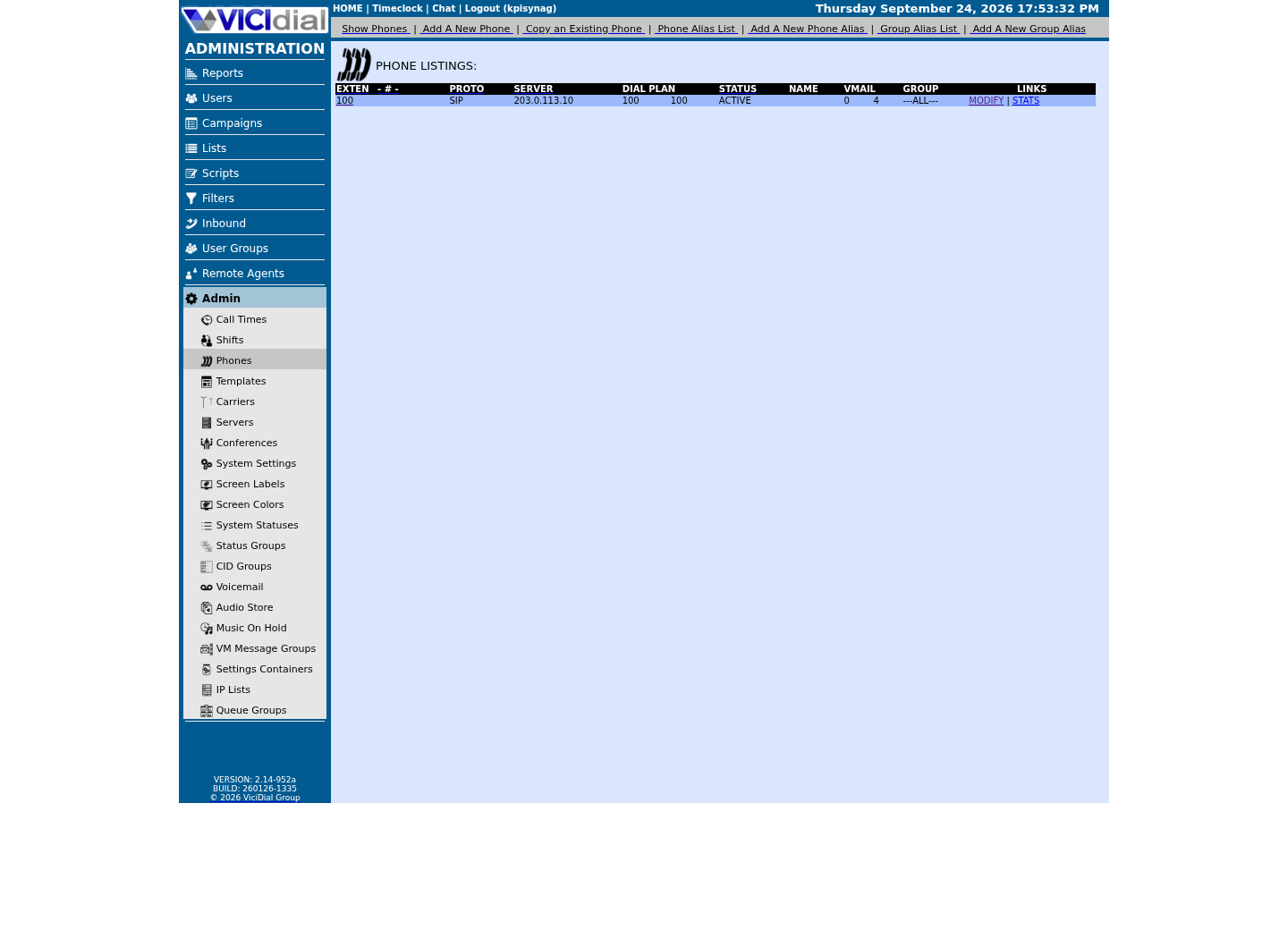
Find the campaign the agent should use
Read the real Agent screen in an idle state
02 / 05
Turn on the smallest safe scope
In System Settings, enable Allow Chats only for the planned test window. VICIdial also exposes Chat Timeout and Chat URL there; leave the public Chat URL unset while testing internal communication unless customer chat is an explicit, reviewed project.
Internal chat availability is not simply ‘all logged-in users.’ The VICIdial guide says agents can start chats only with live agents in user groups their own group may transfer to through Agent Status Viewable Groups. That relationship is a permission boundary, so test it deliberately.
Read the other two System Settings fields as their own decisions, not defaults to skip past. Chat Timeout controls how long a customer chat window stays open after the visitor navigates away from or closes the tab—set it too long and an abandoned session ties up an agent's attention; set it too short and a visitor who stepped away only briefly loses the session before they come back. Chat URL is only the location of the customer-facing chat pages; leaving it blank does not disable internal or manager chat, it only leaves the public-facing feature with nowhere to point.
CHAT_MESSAGING.txt describes Allow Chats only as a single system-wide switch, not a per-group option, so treat turning it on as exposing agent-to-agent and agent-to-manager chat everywhere at once unless you confirm otherwise on this build. Combine the timed test window with the Agent Status Viewable Groups boundary from the paragraph above, so switching the feature on for everyone does not also mean every agent can suddenly reach every other agent. That system-wide switch is a different control from the per-campaign Allow Chat field this article's customer section covers below: System Settings' Allow Chats turns on internal and manager chat everywhere, while each campaign still needs its own Allow Chat set before agents in its Chat InGroups receive customer chat requests.
If a test agent cannot find the supervisor in their live-agent list, check the two conditions separately rather than guessing: confirm the agent is actually logged in on the Real-Time report, then confirm the supervisor's group is listed in that agent's Agent Status Viewable Groups. Either gap produces the same symptom—an empty or short list—so checking them one at a time is faster than changing settings at random.
SYSTEM: Allow Chats = test enabledSUPERVISOR GROUP: may view TEST_AGENTSTEST AGENT A: logged inTEST AGENT B: logged inPUBLIC CHAT URL: unsetSTOP: unrelated group becomes selectableThis sample is a template or reading aid, not a terminal command. There is no output to show.
- Before you run it
- Set this only in the approved test window and record the prior setting.
- Success looks like
- The supervisor and permitted test agents can find each other; unrelated users cannot.
- Stop if
- Restore the prior scope and investigate if an unrelated group is selectable.
03 / 05
Use alerts as attention signals, not surveillance
The built-in guide says unread internal chats are highlighted and agents can mute the alert sound. Use that behavior to support urgent operational coordination, but agree on message priority and escalation paths so every routine question does not become an alarm.
Do not infer activity, performance or availability solely from chat alert state. A muted sound, a browser issue, a paused agent or an unanswered message can have many explanations. Use the normal supervisor tools and approved operational procedures for staffing decisions.
The mute control is a single checkbox labeled “Mute alert sound”, positioned beneath the “Your active chats” panel on the agent's internal chat screen—it silences the audio cue only, not the blinking tab or the bold highlight in the chat list. That matters operationally: an agent who muted the sound during a loud shift can still see a waiting message, so a supervisor should confirm what an agent saw before assuming a message went unnoticed.
CHAT_MESSAGING.txt describes the mute control only as a per-agent checkbox, with no supervisor-level override mentioned—treat one agent muting their own sound as having no effect on anyone else's alerts unless you confirm otherwise on this build. If a shift needs quieter alerts for a specific reason, say so in the internal-chat policy and let each agent apply it themselves, rather than assuming a single setting reaches everyone.
If an agent reports missing an urgent message, check the ordinary explanations before assuming the alert failed: the browser tab was in the background, the mute checkbox was on, or the agent was mid-call and could not act on it yet. Reserve “the chat system is broken” for the case where the message never appears in the chat log at all.
- Define a small set of allowed urgent-message categories.
- Tell agents how to mute sound without disabling needed work alerts.
- Use phone/system emergency procedures for emergencies, not chat alone.
04 / 05
Test a supervisor broadcast with a rollback
The manager chat interface can start chats with logged-in agents and send broadcasts. A broadcast is powerful because it interrupts many people at once, so test it after internal one-to-one chat and use a clear test prefix. Never send customer data, passwords, or schedule changes that have not been approved.
Plan rollback before sending: capture the exact message, recipient scope and time; if it is wrong, send one concise correction to the same scope and record the incident. Deleting or editing history is not a substitute for a clear correction.
Find the manager screen before you need it under pressure: in the Administration web interface it appears as a “Chat” link at the top of the screen, next to the HOME and Timeclock links. From there a supervisor can open a one-to-one chat with any logged-in agent, or switch to a broadcast that reaches everyone logged in, or a chosen subset—the same screen, two very different blast radiuses, so confirm which mode is selected before sending.
The same manager screen offers both one-to-one and broadcast sending, which is exactly why the audience check in the rollback plan matters: confirming “two test agents only” before sending is what prevents a rehearsal from becoming an accidental floor-wide interruption. Rehearse the audience-selection step by itself, with no message typed yet, before the first real broadcast test.
PREFIX: [TEST]AUDIENCE: two test agents onlyMESSAGE: [TEST] Please reply ACK in internal chat.SUCCESS: two deliveries and two repliesROLLBACK: correction to same audienceSTOP: audience count differsThis sample is a template or reading aid, not a terminal command. There is no output to show.
- Before you run it
- Use only the two test agents and a quiet period.
- Success looks like
- Only the stated recipients see the test and the chat log records it.
- Stop if
- Stop broadcasts and review group scope if recipient count differs.
05 / 05
Treat website customer chat as a separate launch
VICIdial documents a customer chat page and URL parameters such as group_id and available_agents. That is a web-facing service, not a small extension of internal chat. It needs HTTPS, public abuse controls, privacy notice, retention decisions, availability behavior, monitoring and a clear owner.
Before publishing a link, test a private staging page with a synthetic customer identity and a dedicated inbound chat group. Verify no-agent behavior, timeout, agent transfer, log access and what the visitor sees after leaving the page. Do not iframe or expose a plain HTTP chat URL in production.
Before setting a public Chat URL, confirm the feature actually ships on your build rather than assuming the 2016 documentation still matches your install: VICIdial's customer chat lives in a folder named chat_customer inside the web directory, holding the page your website links to. Listing that folder read-only is enough to confirm it is present before you write a single external URL against it.
The documentation lists five URL parameters for that page: group_id selects the Inbound Chat Group to route into, language overrides the default screen language, available_agents can restrict the link to moments when logged-in or waiting agents exist, status_link turns the same link into a small availability button instead of a chat window, and show_email adds an email field (or email plus phone) to the visitor form. Build any worked link from those parameters and your own server name—never the documentation's own example address—for instance `https://<VICIDIAL_HOST>/chat_customer/customer_chat_code.php?group_id=<INGROUP_ID>`.
The documentation shows two ways to publish the same chat: a plain link a visitor clicks, using customer_chat_code.php, or the same page embedded in an IFRAME on your own site, using vicidial_chat_customer_side.php—both accept the same group_id and language parameters. The status_link parameter is a third variant: instead of opening a chat, it renders a small 150-by-37-pixel button that only shows whether agents are currently available, which is a safer first step than a live chat window if you only want to test visibility before committing to the full feature.
- Separate customer-chat groups from internal test groups.
- Review public URL, TLS, privacy and retention with security/privacy owners.
- Test no-agent and timeout paths before launch.
- Confirm the chat_customer folder exists on this build (read-only) before writing any public link.
ls -la /srv/www/htdocs/chat_customer/Captured demo response · 2026-09-24 22:25 UTC. The displayed command is the command that ran; a safe subset label means it was filtered, redacted, or fixture-scoped. Replays only after you select Replay transcript.
- Before you run it
- Run this before configuring a public Chat URL; it only lists a directory and changes nothing.
- Success looks like
- The listing shows customer_chat_code.php and related files—the shipped customer-chat page is present on this build.
- Stop if
- If the path does not exist, this build may not have the customer chat feature installed, or it lives elsewhere; confirm with your administrator before publishing any Chat URL.
Evidence ledger
Verification basis
- VICIdial’s CHAT_MESSAGING.txt documents internal, manager and customer chat, messages searchable through Agent-Manager Chat Log, Agent Status Viewable Groups, audio mute, broadcasts, and customer chat configuration.
- The source was last updated in 2016; verify the exact screens and security behavior on the installed VICIdial revision before enabling chat.