Reader setup
Before you start
Run each step in order and move only when the outcome is confirmed.
- Terminal basics
- An approved lab host
- A service name supplied by its owner
- What you will prove
- You can read a service's state and its recent logs, then report precise evidence.
- Safety boundary
- This lesson uses status and logs only. Do not restart or enable a shared production service without a change plan.
Reader path
How to use this article
- Use it when: You need a fixed sequence to make a deployment or configuration change now.
- Expected result: Follow each step and verify the outcome before changing the next layer.
- Start here: Start at the first section and complete every checkpoint before moving to the next.
01 / 05
Services run under a supervisor
systemd manages units — services, timers, sockets and mounts — on most modern Linux distributions, including both Debian/Ubuntu and openSUSE. `systemctl status` reports a unit's current and recent state, but "active (running)" only proves the process is alive; it says nothing about whether every dependency it needs, or every call path that runs through it, is actually healthy.
A unit's exact name is not always what you expect. The historical name and the packaged name can differ — the same OpenSSH server process is called ssh.service on Debian and Ubuntu but sshd.service on openSUSE, the family ViciBox is built on, and most Red Hat–family distributions — so the first useful step on an unfamiliar host is discovering the local name, not guessing it from habit.
This curriculum's lab stage runs on openSUSE, so the samples below check the openSUSE-style name first and treat the Debian-style name as the fallback — the same ordering choice the package-manager lesson made for zypper over apt, for the same reason.
Visual walkthrough
Follow three real demo screens
Captured on an isolated VICIdial demo: Administration screens on September 24, 2026, and the idle Agent screen on August 11, 2026. Each caption states its own capture time, and every sanitized image helps you recognize a related screen; none proves that this article's call, command, or result occurred.Start at Administration home
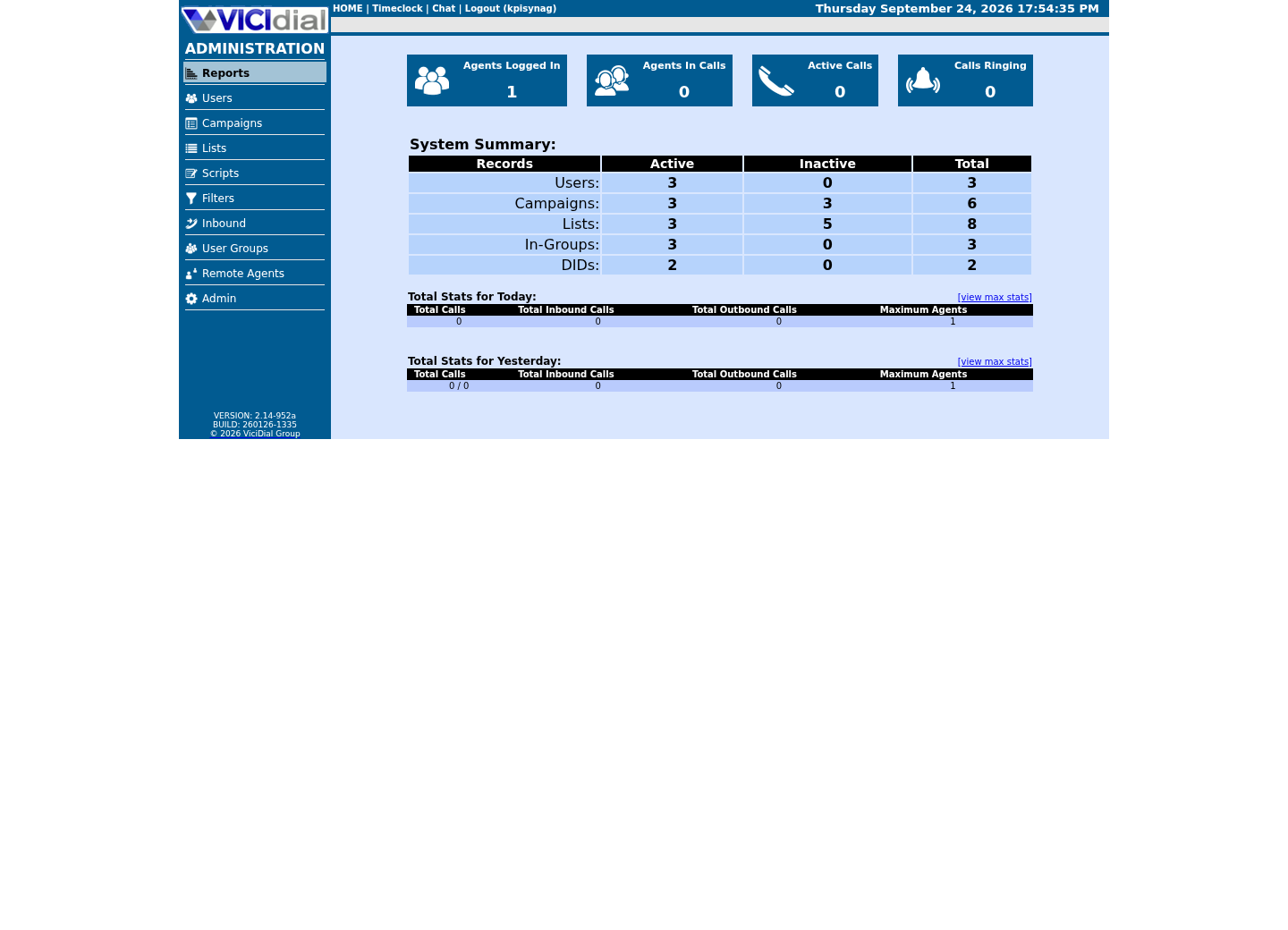
Use the Administration menu as a map
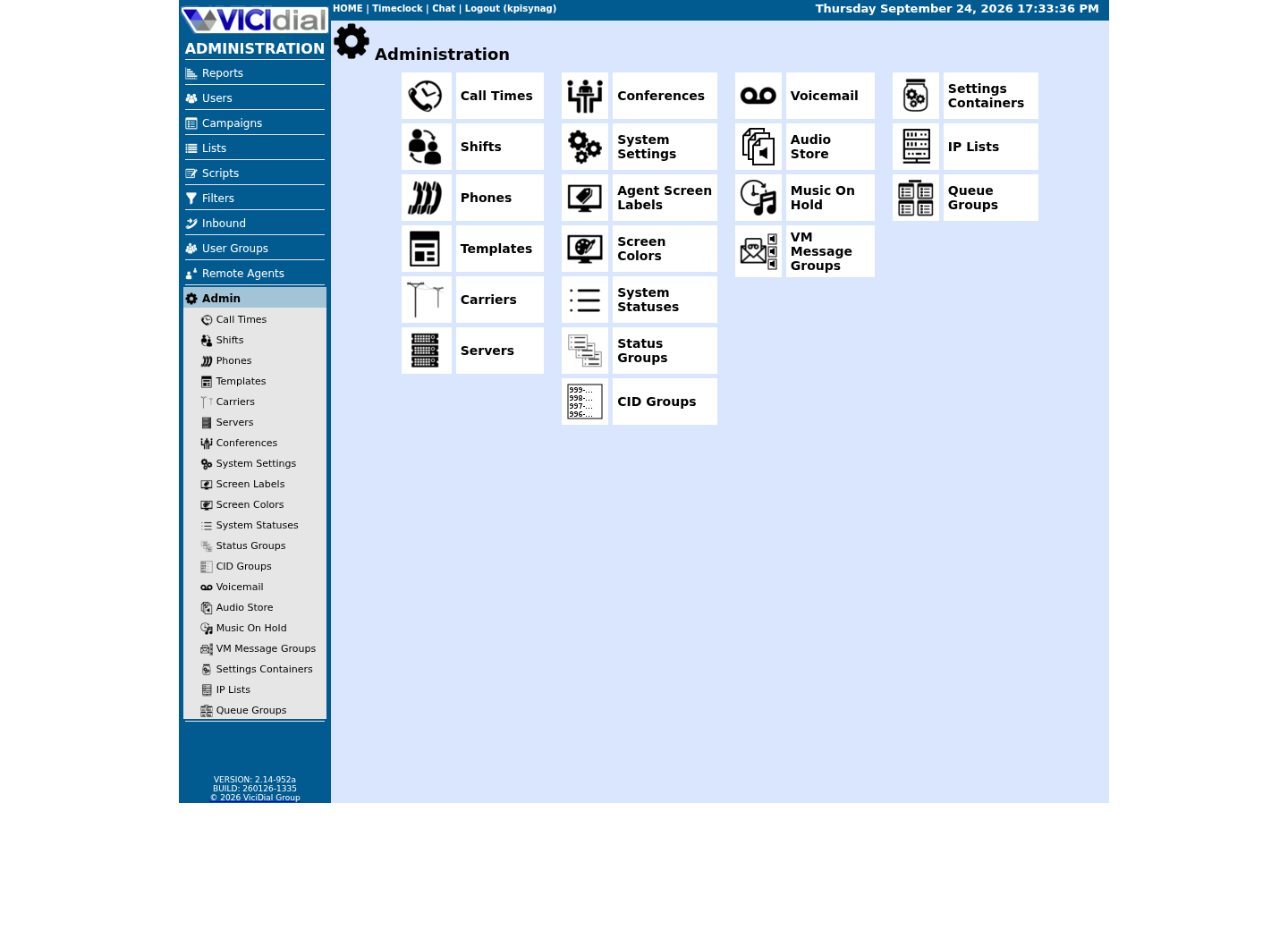
Confirm version and system-wide context
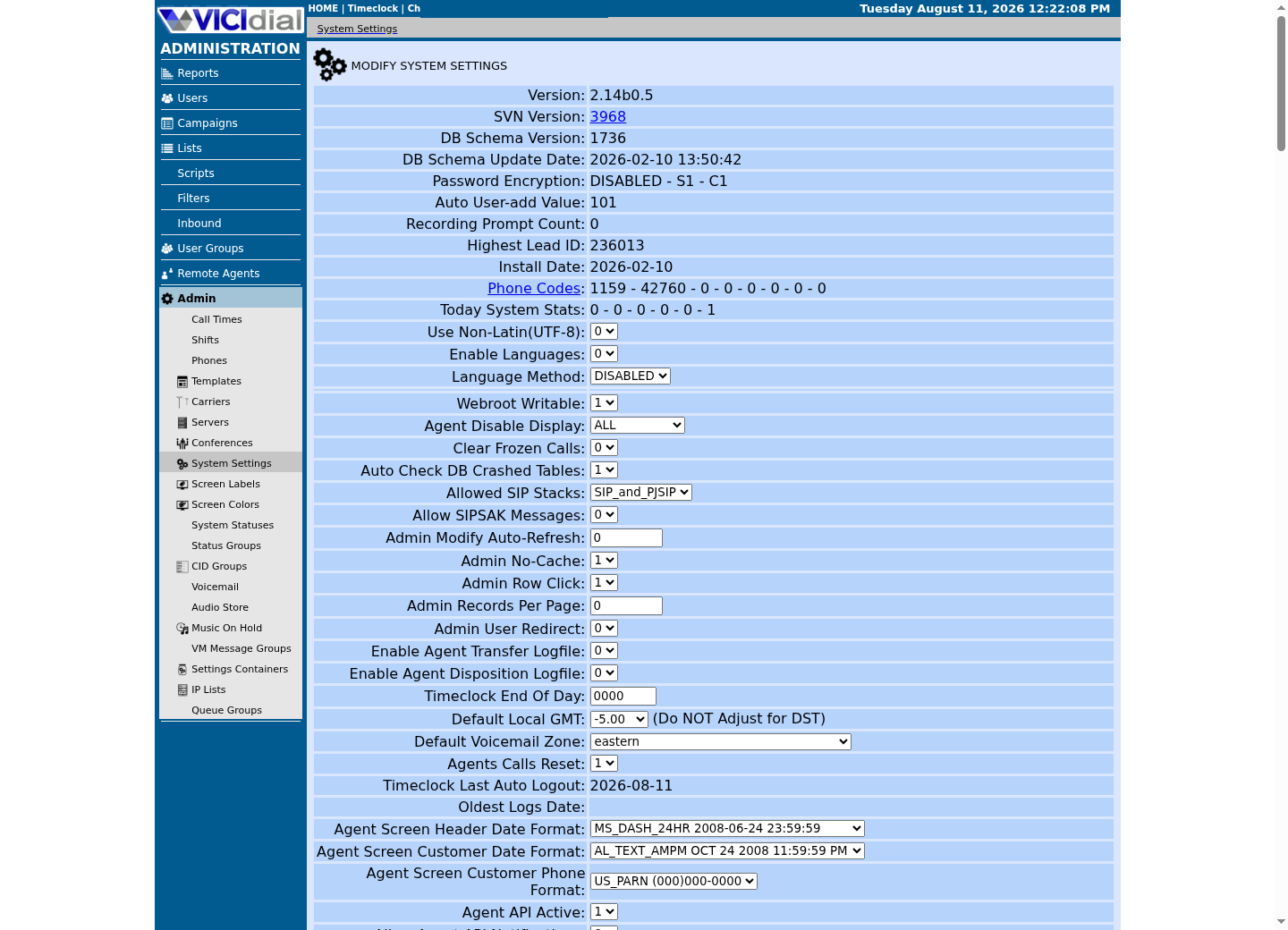
02 / 05
Logs are evidence with context
The system journal timestamps every message and tags it with the service that produced it, which turns a vague "it broke earlier" into evidence: the exact unit, the exact time range, and the exact text. A useful incident note captures all three, plus your timezone, so a colleague in a different timezone can reproduce your window exactly.
Be as careful about what a log contains as about what a command does. Never export a full recording, a credential, or a whole customer-facing log to a ticket system outside the approved audience; copy only the handful of lines that actually show the fault.
A journal query that returns nothing is itself a fact worth recording, not a failure of the command. "No entries in the last 30 minutes" can mean the service has been quiet, or that you queried the wrong unit name, or that the journal is not retaining as much history as you assumed — each is a different next step, so note which one you actually observed rather than just "nothing showed up."
03 / 05
Guided sample: find and inspect a unit
`systemctl list-unit-files` lists every unit systemd knows about, whether or not it is currently running; piping it through `grep` for a name pattern finds the local spelling without you needing to guess it first. Once you know the real name, `systemctl status` — with `--no-pager` so the output does not wait for you to press q — reports that unit's current state and its most recent log lines in one command.
`systemctl status` exits with a non-zero status when the named unit does not exist at all, which is what makes the `||` fallback below reliable: the second command only runs if the first one genuinely found no such unit, not merely because the service happened to be stopped.
systemctl list-unit-files | grep -E '^(ssh|sshd)\.service'systemctl status sshd.service --no-pager || systemctl status ssh.service --no-pagerCaptured demo response · 2026-09-23 21:34 UTC. The displayed command is the command that ran; a safe subset label means it was filtered, redacted, or fixture-scoped. Replays only after you select Replay transcript.
- Before you run it
- Use the first line to discover the local unit name.
- Success looks like
- You receive a status report without changing service state, from whichever unit name actually exists on this host.
- Stop if
- Stop if the service is not present or if status requests credentials you do not have.
04 / 05
Guided sample: read a bounded journal window
`journalctl -u` narrows the entire system journal to messages from one unit, and `--since` bounds it to a time window, far more useful for comparing against a specific test call or browser event than scrolling through unfiltered output. Passing `-u` twice, once per possible name, asks for entries matching either unit in one query — a safer choice here than an `||` fallback, because `journalctl` prints "-- No entries --" and exits successfully even for a unit name that does not exist, so a fallback built on its exit status would never actually trigger.
journalctl -u sshd.service -u ssh.service --since '30 minutes ago' --no-pagerCaptured demo response · 2026-09-23 21:34 UTC. The displayed command is the command that ran; a safe subset label means it was filtered, redacted, or fixture-scoped. Replays only after you select Replay transcript.
- Before you run it
- This matches either unit name in one query and only reads the journal.
- Success looks like
- You see recent entries for whichever of the two unit names actually exists on this host, or a clear "no entries" result if the service has been quiet.
- Stop if
- Stop and redact before sharing any output that contains IP addresses, usernames or secrets outside the approved audience.
05 / 05
When a restart is not a diagnosis
Restarting a stuck-looking service can clear the very evidence that would have explained an intermittent fault, because a fresh process starts with a clean state and no memory of what led up to the problem. Collect status and logs first; only then follow the system owner's approved recovery procedure, which on a shared or production host is very rarely "restart it and see."
This is doubly true once VICIdial is the service in question. A dialer restart drops every call, agent session and in-progress dialing decision it is holding at that instant, so the cost of restarting before you have read the evidence is not hypothetical the way it might be for a quiet SSH daemon.
- I found the unit's real local name before I ran status against it.
- I bounded my journal query to a specific, useful time window.
- I collected evidence before considering a restart, not after.
Evidence ledger
Verification basis
- Both samples here only observe: `systemctl status` and `journalctl` never start, stop, enable or restart a unit.
Primary references
Sources
- systemctl manualsystemd · accessed August 10, 2026
- journalctl manualsystemd · accessed August 10, 2026